Create Member Rates
Steps for administrators to set up member rates with level-based pricing and connect them to the booking engine.
Member rates let receptionists apply the correct pricing based on membership level, and can be published in the booking engine so members can book them directly.
1. Open Rates
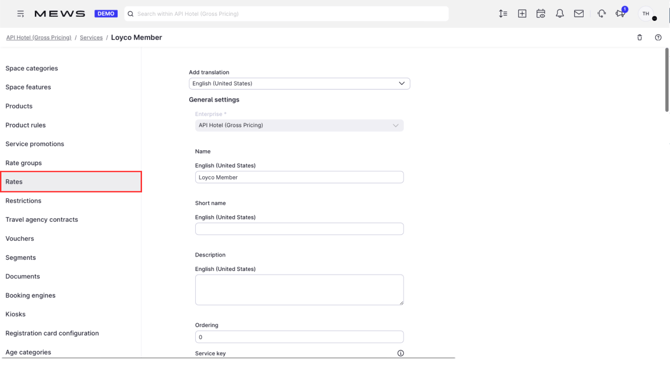
In Mews, click Rates.
2. Create a new rate
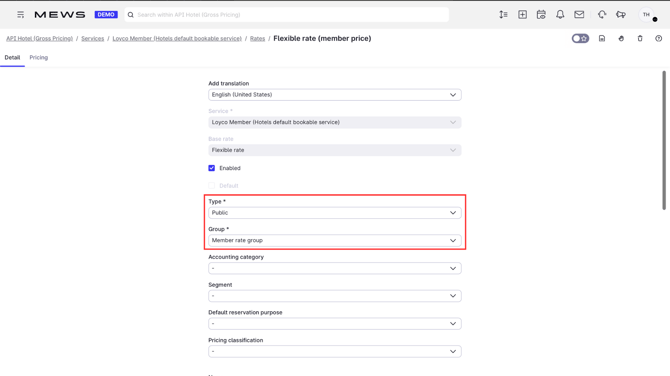
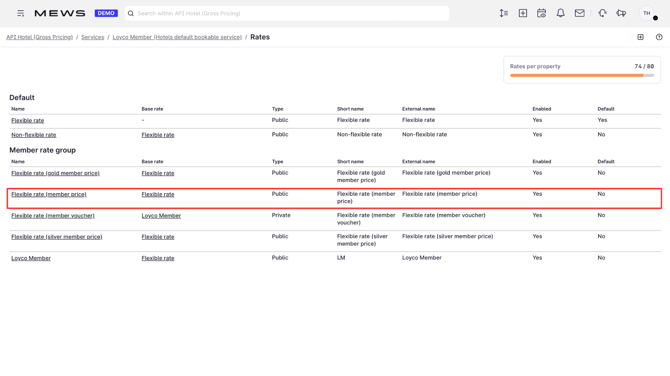
Click + to create a new member rate. If your program has member levels, create one rate per level, each with its own booking engine, products, and product rules.

3. Set visibility
Choose Public to make the rate visible in the booking engine it is mapped to. Rates set to Private are not displayed.

4. Add a description and save
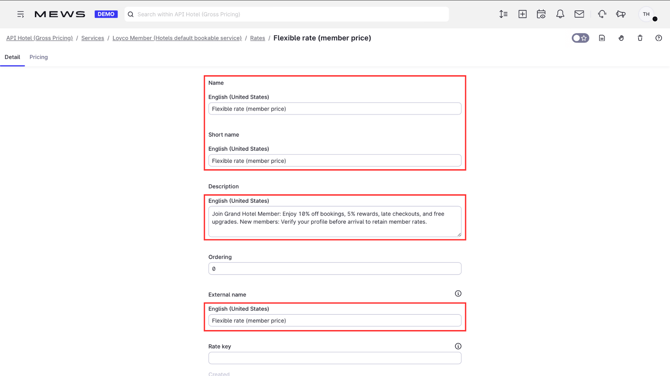
Add a description and click Save.

5. Adjust the pricing
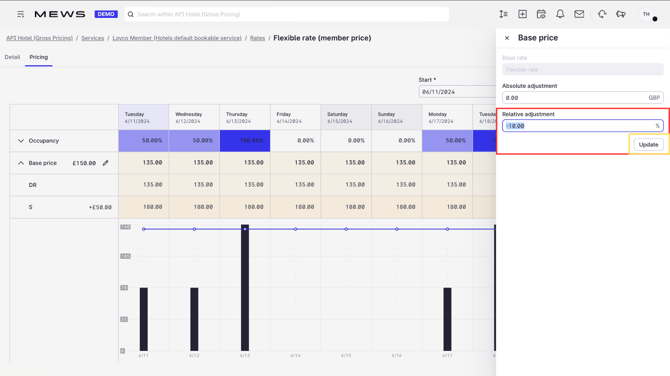
Click Pricing, then the pencil icon. Add either an Absolute adjustment or a Relative adjustment from the base rate. For example, a relative adjustment of -10.00% gives a 10% member discount on the base price.

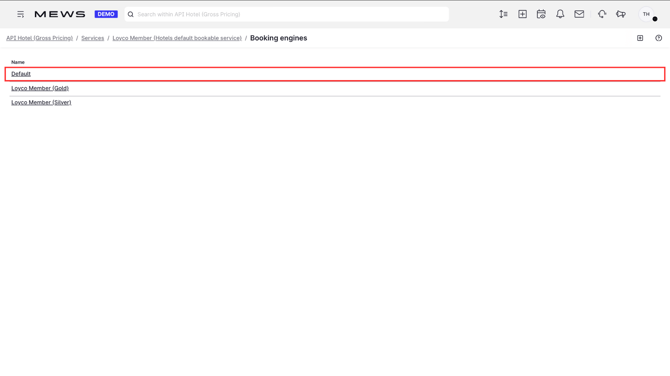
6. Open Booking engines
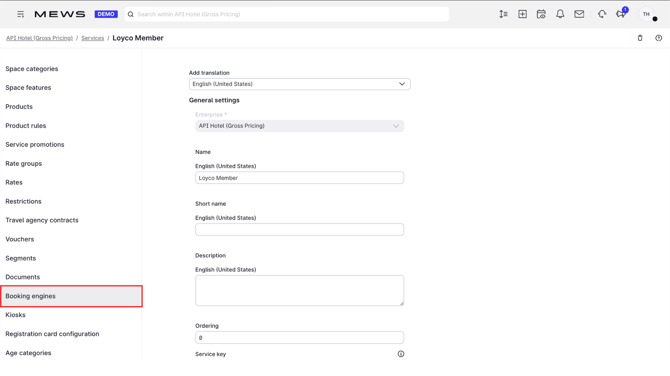
Click Booking engines to connect the rate.

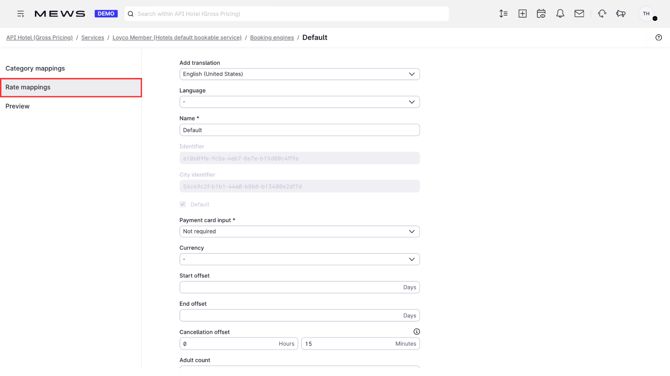
7. Connect the rate
Connect the new member rate to the default booking engine. If you have member levels, connect Level 1 to the default booking engine, and Levels 2 and 3 to their own separate booking engines with their respective rates and products.

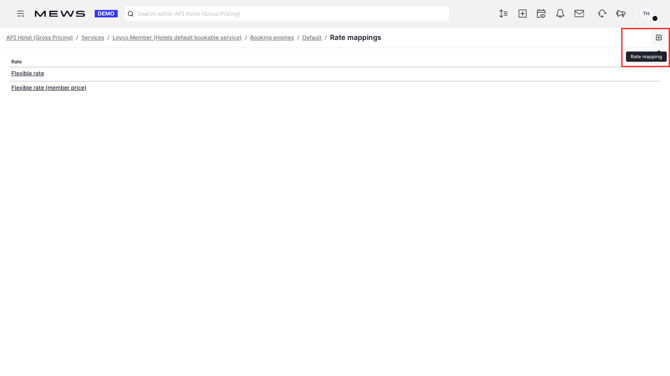
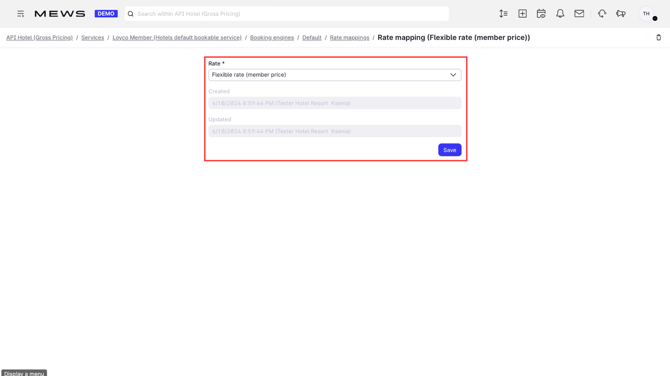
8. Add the base rate (optional)
If you also want the standard price visible in the members' booking engine, add the base rate under Rate mappings.

9. Save
Click Save.


10. Verify the setup
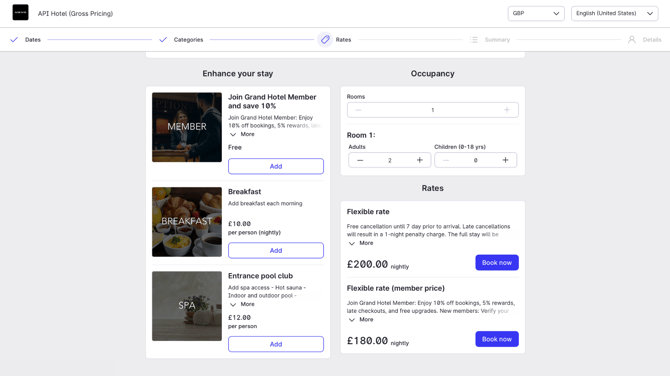
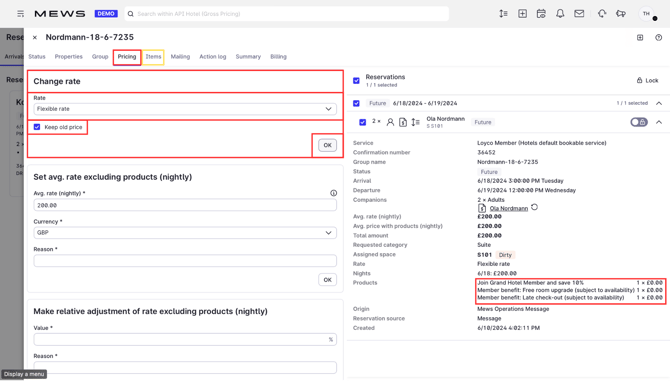
Check that the member rate appears in the booking engine. In the PMS, receptionists can now view and change member rates, and see automatically or manually added loyalty products under Products.

11. See how member rates appear when the "Public" option is selected. Rates set to "Private" will not be displayed in the booking engine.
Good to know
- Rates set to Private are hidden from the booking engine but can still be applied manually by receptionists in the PMS.