
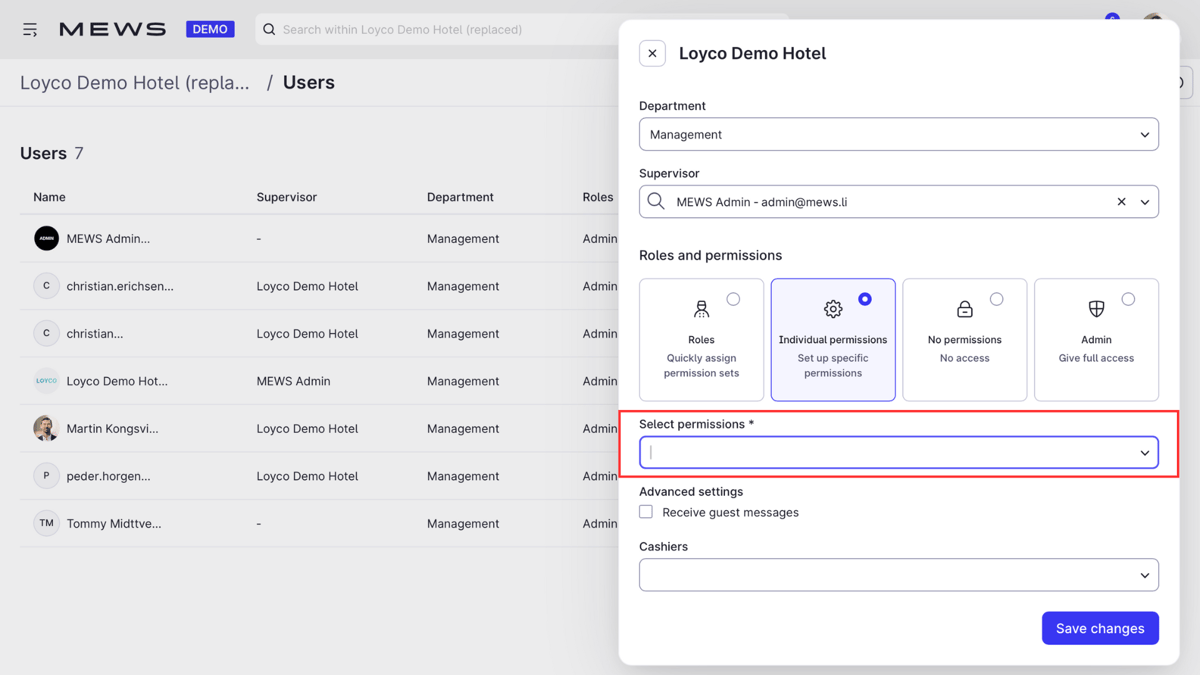
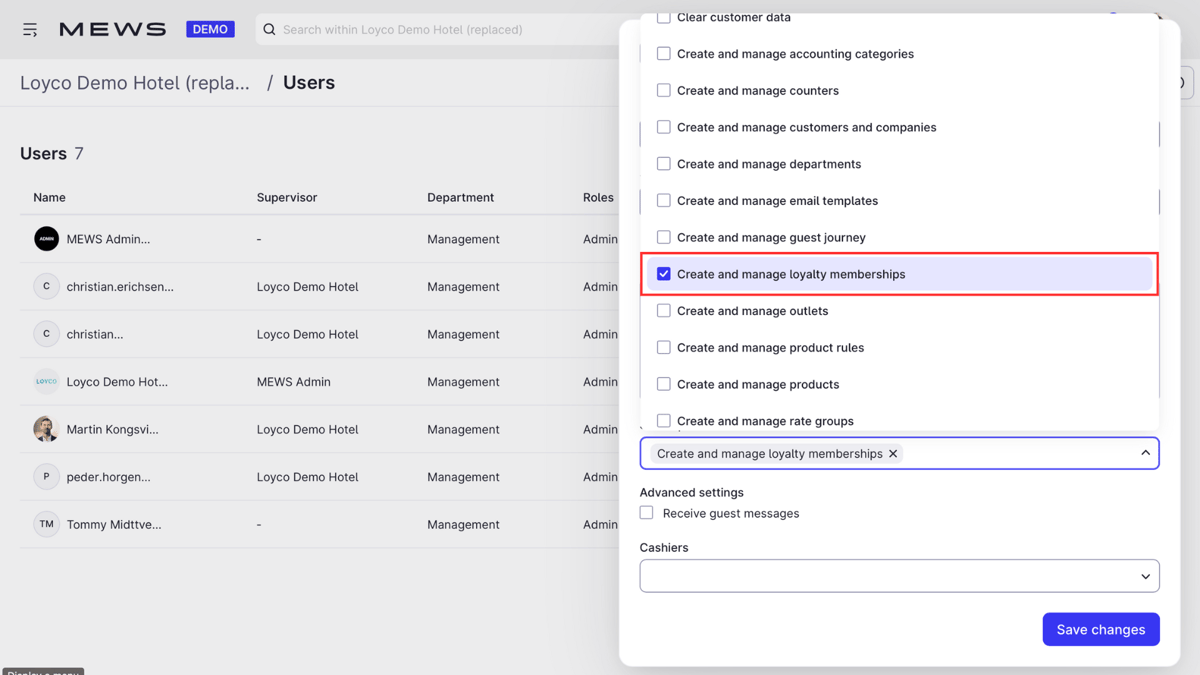
For receptionists to enroll members and manage loyalty memberships, the correct permission must be enabled on their user profile in Mews.
1. Open Users
In Mews, open the burger menu and click Users. Select the receptionist from the user list.
Good to know
- Individual permissions are set per user. Repeat these steps for each receptionist who will work with the loyalty program.
- Alternatively, the permission can be added to a role. All users with that role are then updated automatically, which is faster if many receptionists need loyalty access.
- If a user already has the Admin role with full access, no individual permission is needed.