Configuration and setup
How to configure
To configure the Loyco loyalty program on HotSoft PMS, complete three stages in order: set up Column Layouts, fill in the Interface settings provided by Loyco, and add an External Source with the Loyall member-insight URL. These steps are required before managing members or processing enrollments.
Access "Column Layouts" to configure the necessary settings.
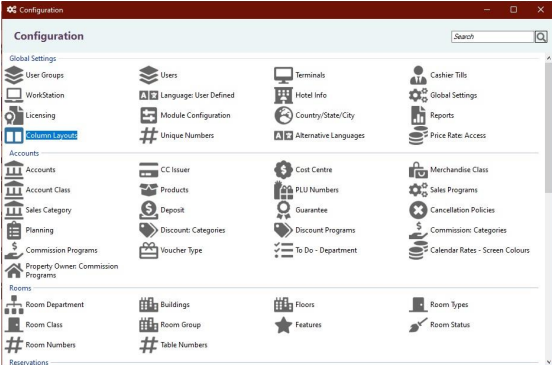
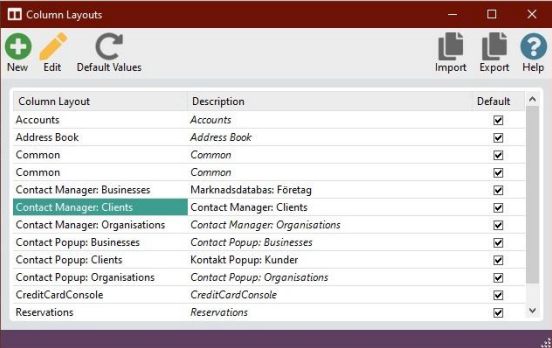
Click on "New" or "Edit" on "Contact Manager: Clients"
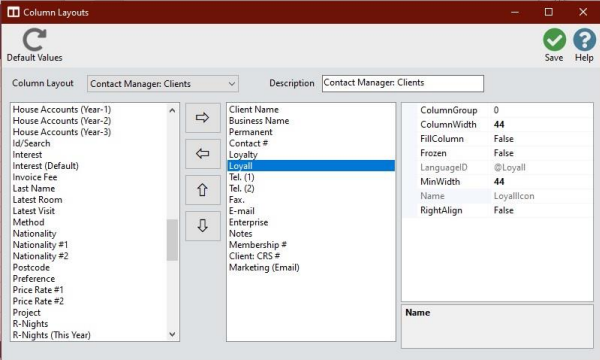
From the left-hand side list, find ‘Loyalty’ and ‘Loyall’, and move them over to the right-hand side list. Save and close.
Interface settings
Open the Interface Settings menu, then enter the following values:
‘EndPoint’, ‘APIKey’, ‘MemberEndPoint’ and ‘ProgramID’ are given by Loyco.
‘TerminalID’ is auto-generated. Do not modify.
HSResponseWebService: set to https://pmshub.hoistcloud.com/ (verify this URL is current with your Hoist support contact before configuring). 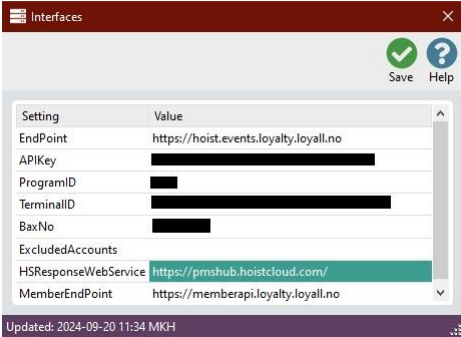
External sources
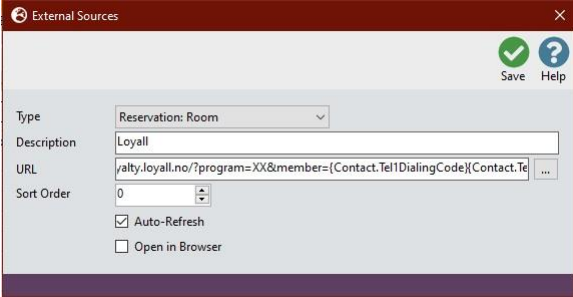
Open the "External Sources" menu
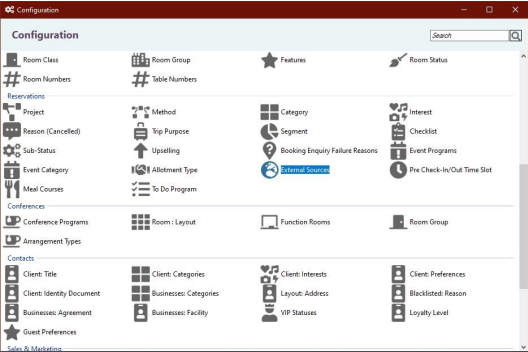
Select "New"
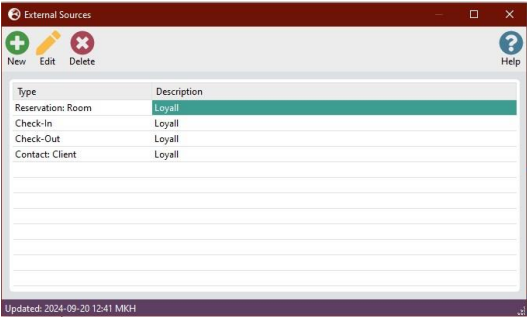
Set a ‘Description’.
Set the ‘URL’ :
https://memberinsight.loyalty.loyall.no/2fa/?program=XX&member={Contact.Tel1DialingCode}{Contact.Tel1}Verify this URL is current with Loyco before saving, as the domain or path may have changed.
Change the ‘XX’ for program to the one given by Loyco.
Tick ‘Auto-Refresh’.
Save and close