
Before you start
Complete the campaign settings in How to configure the locked member price campaign in BookVisit before configuring the checkout texts. The checkout texts are a continuation of the same campaign setup.
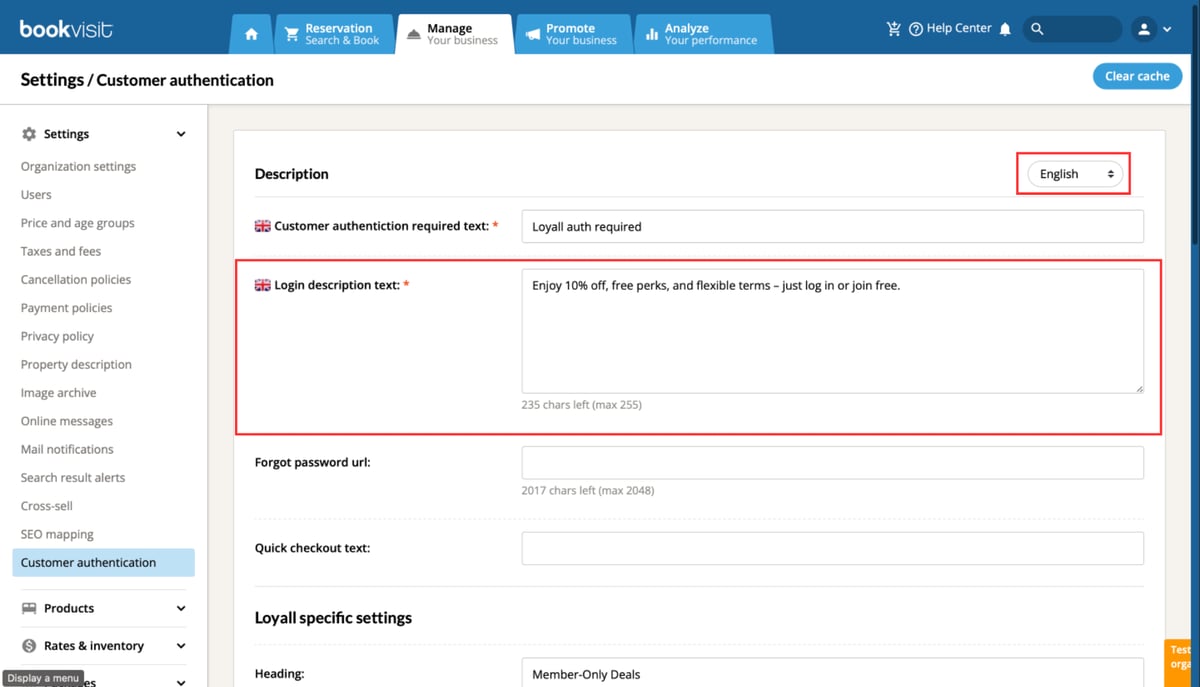
Step 1 — Set the subheader text
Enter the text that appears as a subheader on the member price unlock popup shown in the booking flow. This text is displayed directly below the campaign name when the guest clicks to unlock the member price.
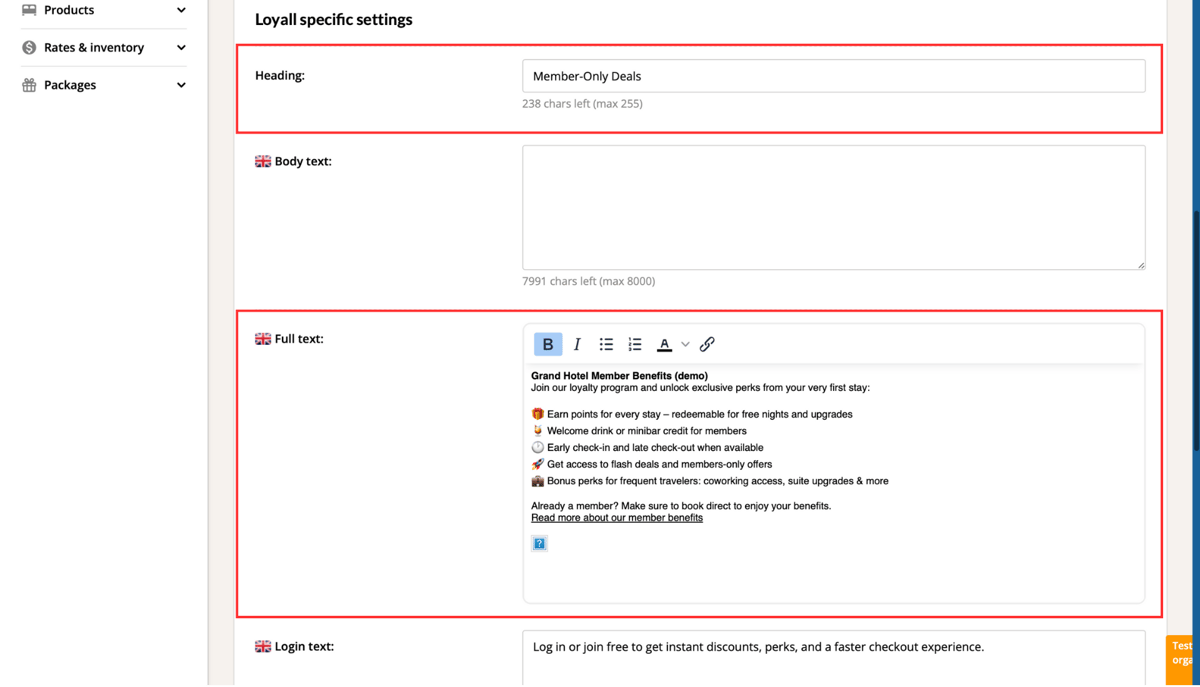
Step 2 — Set the checkout heading
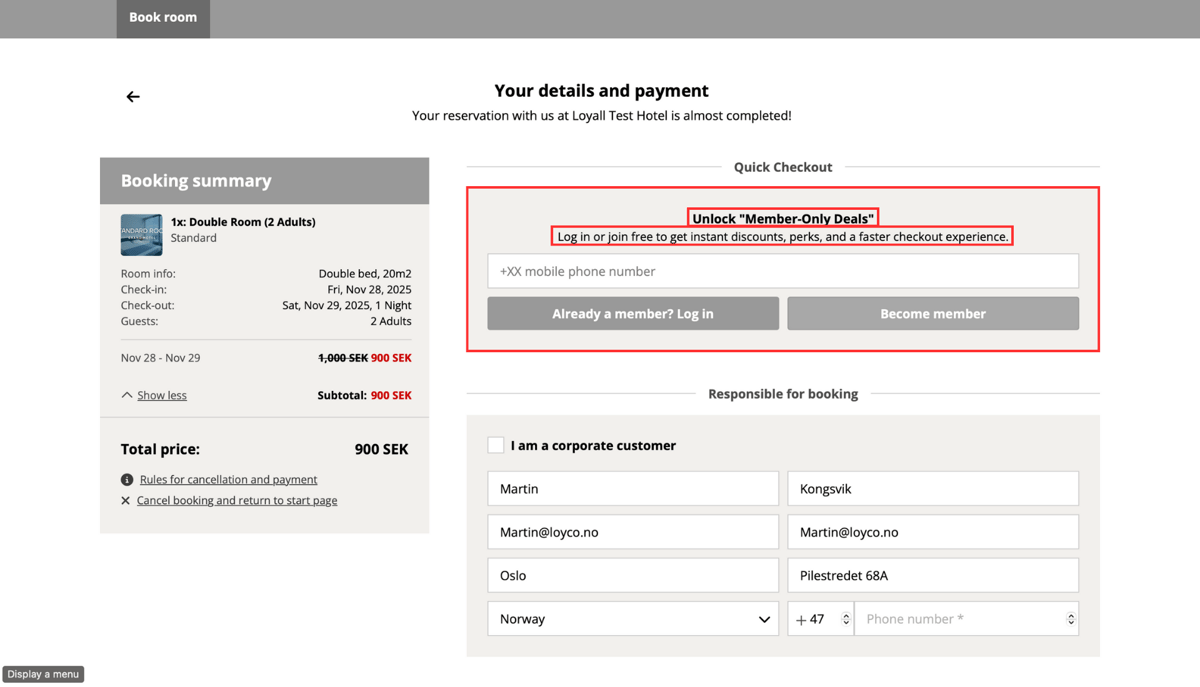
Enter the heading that appears on the login box at checkout. This is the first text the guest sees when they are prompted to log in or register to access the member price. The full campaign information will be shown after the guest clicks More information.
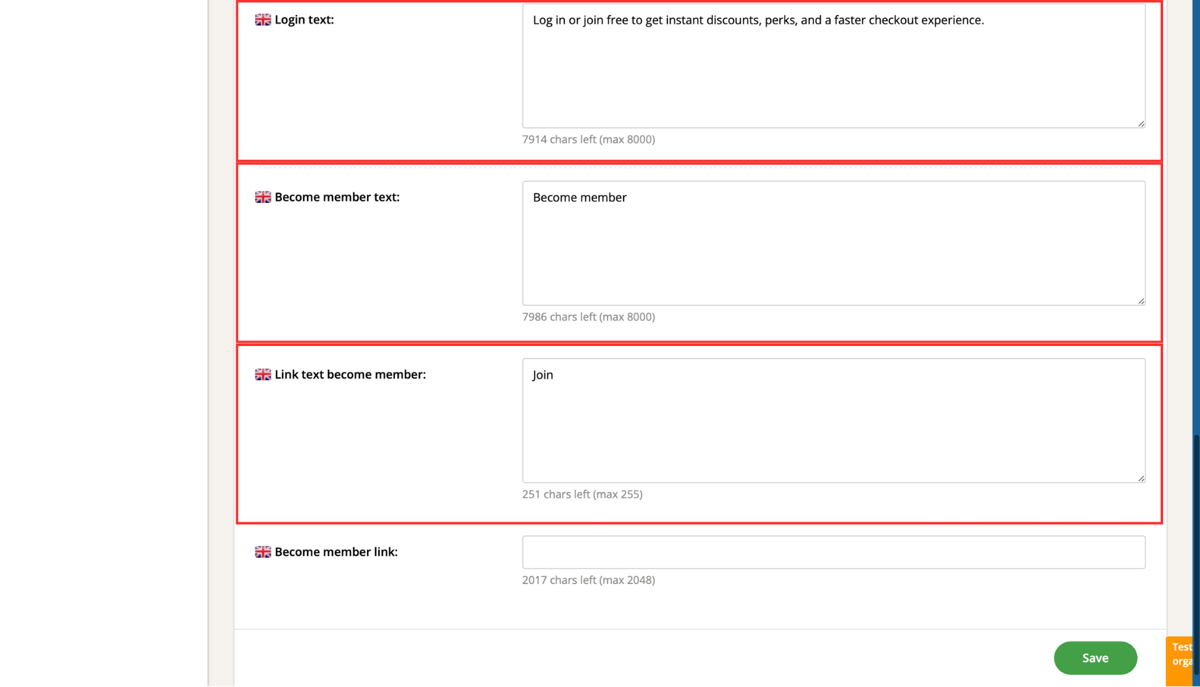
Step 3 — Configure the login and join texts
Enter the texts shown inside the login and join section on the checkout page. This includes:
- Button labels for logging in and becoming a member
- Placeholder texts in the phone number input field
- Any supporting text that helps the guest understand what to do
These texts are visible to the guest when they choose to log in or register at checkout.
Step 4 — Review the predefined values
Some values in the BookVisit admin interface are predefined and cannot be edited. These are displayed as read-only fields. Review them to make sure they align with your campaign setup.
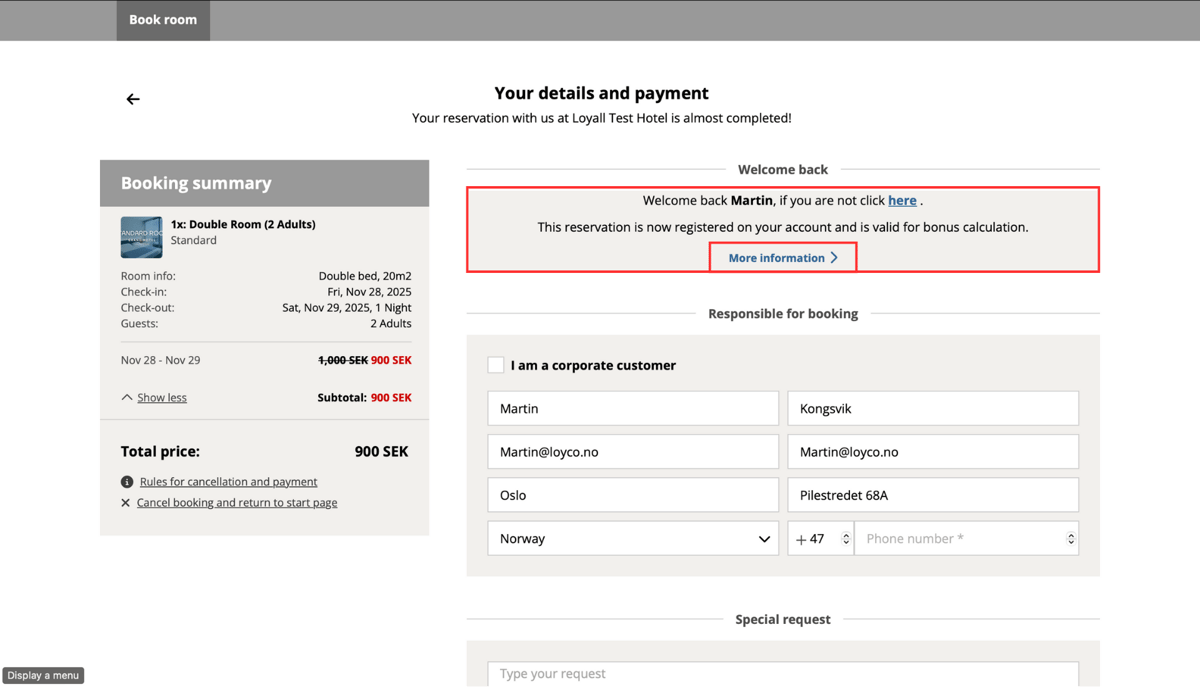
Step 5 — Add the expanded popup text
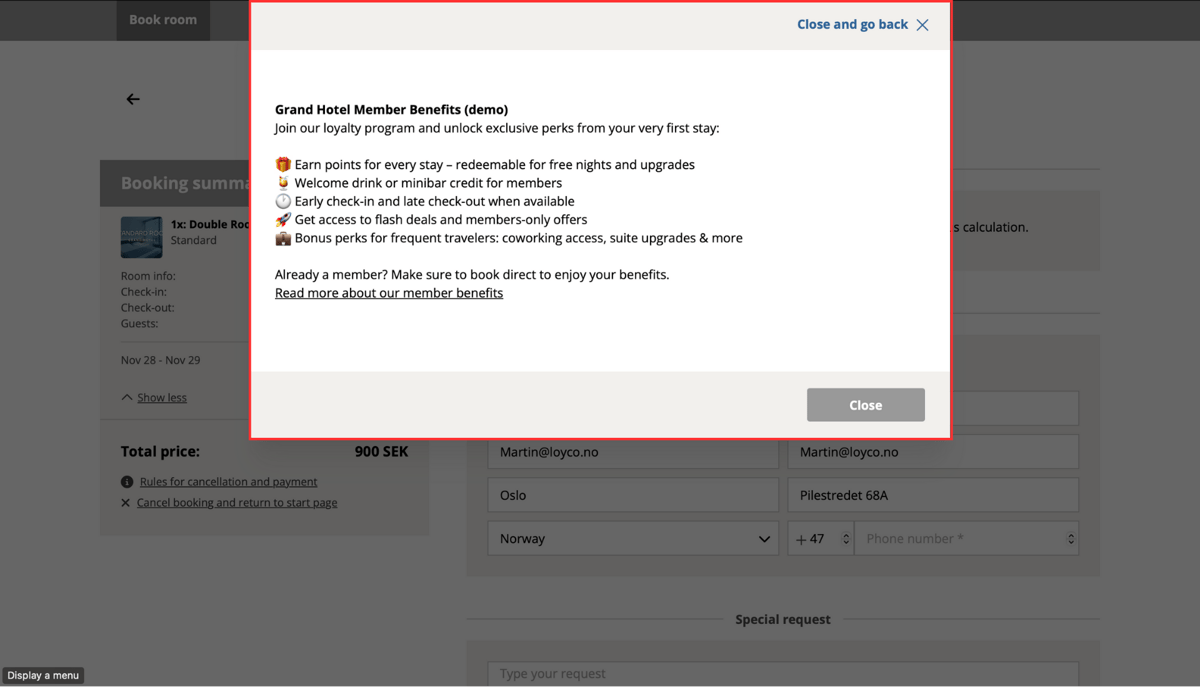
Enter the text that guests see when they click More information during checkout. This is where you can provide detailed information about the loyalty programme benefits, such as bonus points, membership levels, and exclusive offers.
Step 6 — Verify in the booking engine
Once all texts are configured, open the BookVisit booking engine and go through the checkout flow as a guest to verify that all texts appear correctly. Check the following:
- The subheader text appears correctly in the unlock popup
- The checkout heading is visible on the login box
- The login and join texts are clear and correctly formatted
- The expanded popup displays the full programme description
Things to note
- All texts are fully customisable for each property and loyalty programme
- Keep the texts short and clear — guests should understand what to do and why it benefits them within a few seconds
- If any text fields are missing or not saving correctly, contact support@loyco.no