---
title: How to configure the locked member price campaign in BookVisit
description: Set up the locked member price campaign in BookVisit — configure discount, lock type, campaign texts, and image to display member pricing in the booking engine.
---
[Skip to content](https://support.loyco.io/knowledgebase/how-to-configure-the-locked-member-price-campaign-in-bookvisit#main-content)
[](https://support.loyco.io/knowledgebase?hsLang=en)
- [Support](https://support.loyco.io/knowledgebase/contact-us)
Show submenu for Support
- [Book a meeting](https://support.loyco.io/knowledgebase/book-meeting)
- [Contact us](https://support.loyco.io/knowledgebase/contact-us)
- [Program settings](https://www.loyco.io/onboarding)
Open main navigation
Close main navigation
- [Support](https://support.loyco.io/knowledgebase/contact-us)
Show submenu for Support
- [Book a meeting](https://support.loyco.io/knowledgebase/book-meeting)
- [Contact us](https://support.loyco.io/knowledgebase/contact-us)
- [Program settings](https://www.loyco.io/onboarding)
- [Admin login](https://auth.loyco.io/Identity/Account/Login)
[Admin login](https://auth.loyco.io/Identity/Account/Login)
\_
- There are no suggestions because the search field is empty.
1. [Loyco](https://support.loyco.io/knowledgebase?hsLang=en)
2. [Bookvisit](https://support.loyco.io/knowledgebase/bookvisit?hsLang=en)
3. [Setup & configuration](https://support.loyco.io/knowledgebase/bookvisit?hsLang=en#setup-configuration)
# How to configure the locked member price campaign in BookVisit
## This article explains how to set up the locked member price campaign in BookVisit so that guests can unlock exclusive member pricing directly in the booking engine.
**Before you start**
Make sure the Loyco integration is active in BookVisit before configuring the campaign. If the integration is not yet activated, see Getting started with Loyco in BookVisit.
---
**Step 1 — Open the campaign overview**
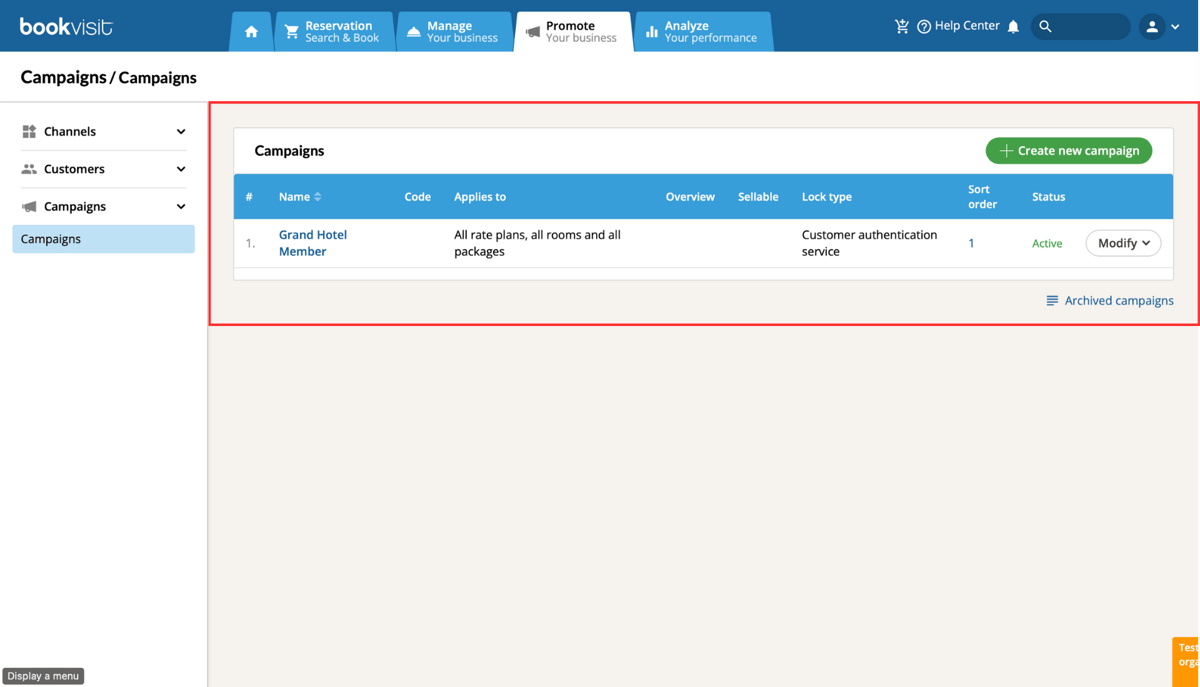
Log in to the BookVisit admin interface and navigate to the campaign overview. Find the campaign you want to configure, click **Modify**, then click **Edit** to open the campaign details.
---
**Step 2 — Set the campaign discount**
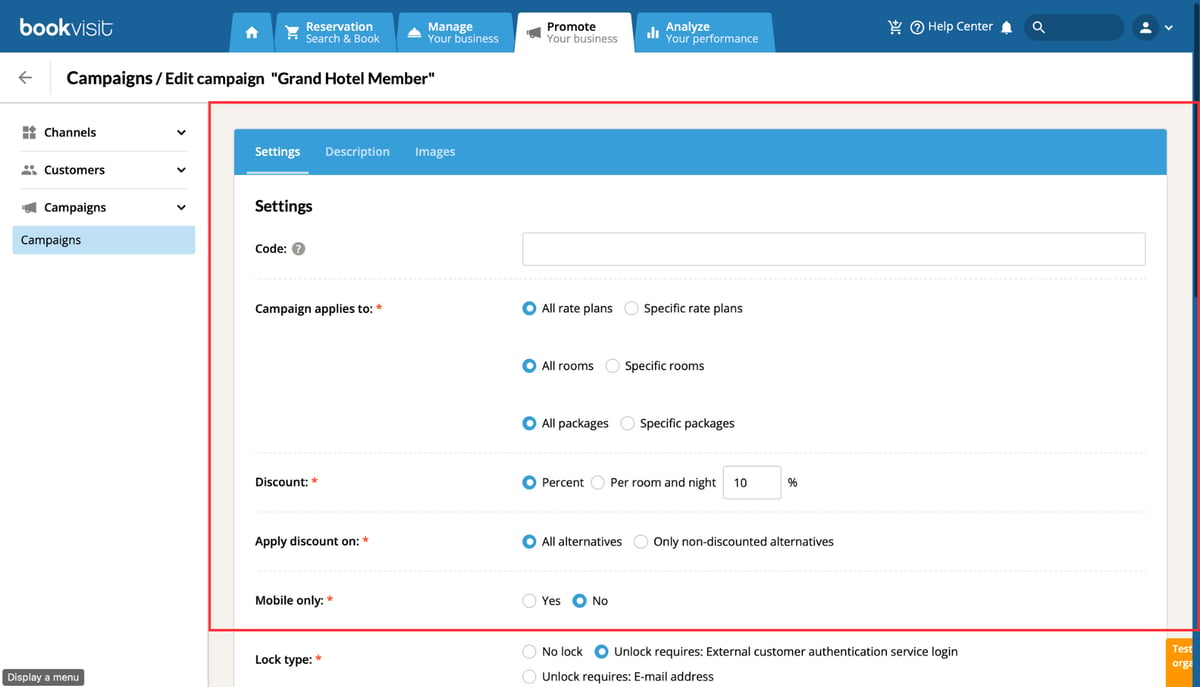
In the campaign settings, choose the desired instant member discount to be applied in the booking flow. The marked values in the settings reflect the recommended setup.
---
**Step 3 — Set the lock type to Loyall**
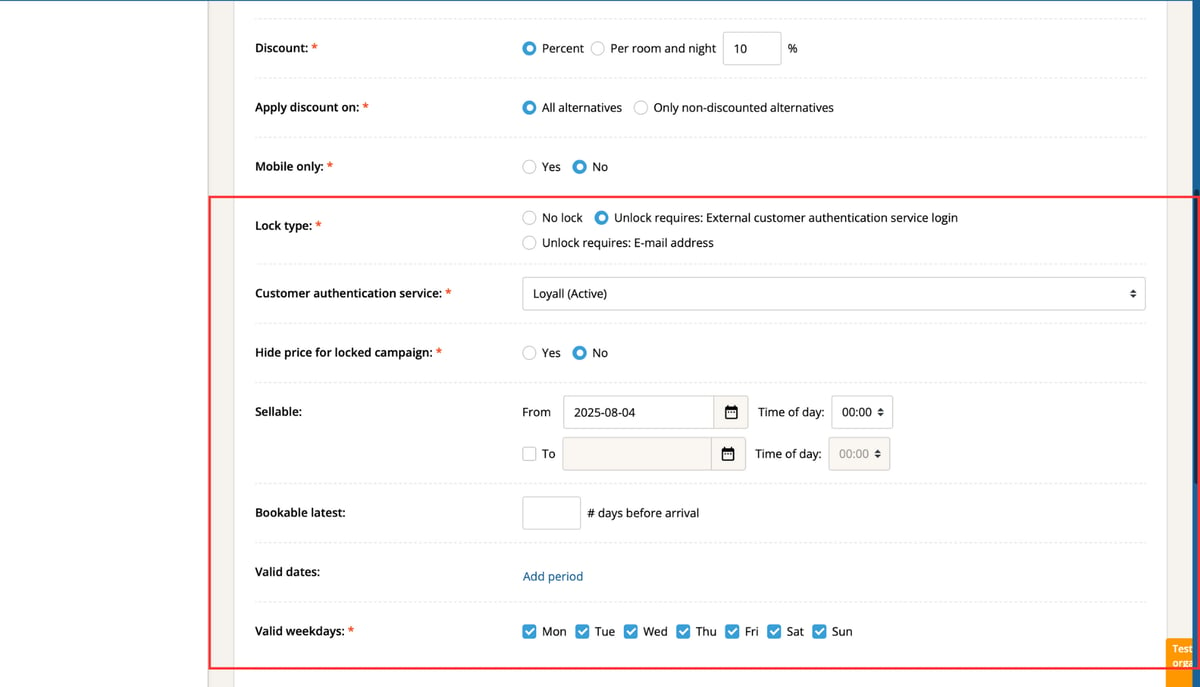
Under **Lock type**, select **Loyall**. This connects the campaign to the Loyco authentication system, requiring guests to log in or register to unlock the member price.
You can also choose whether the discounted price should be visible or hidden before the guest logs in.
---
**Step 4 — Connect the campaign to web booking**
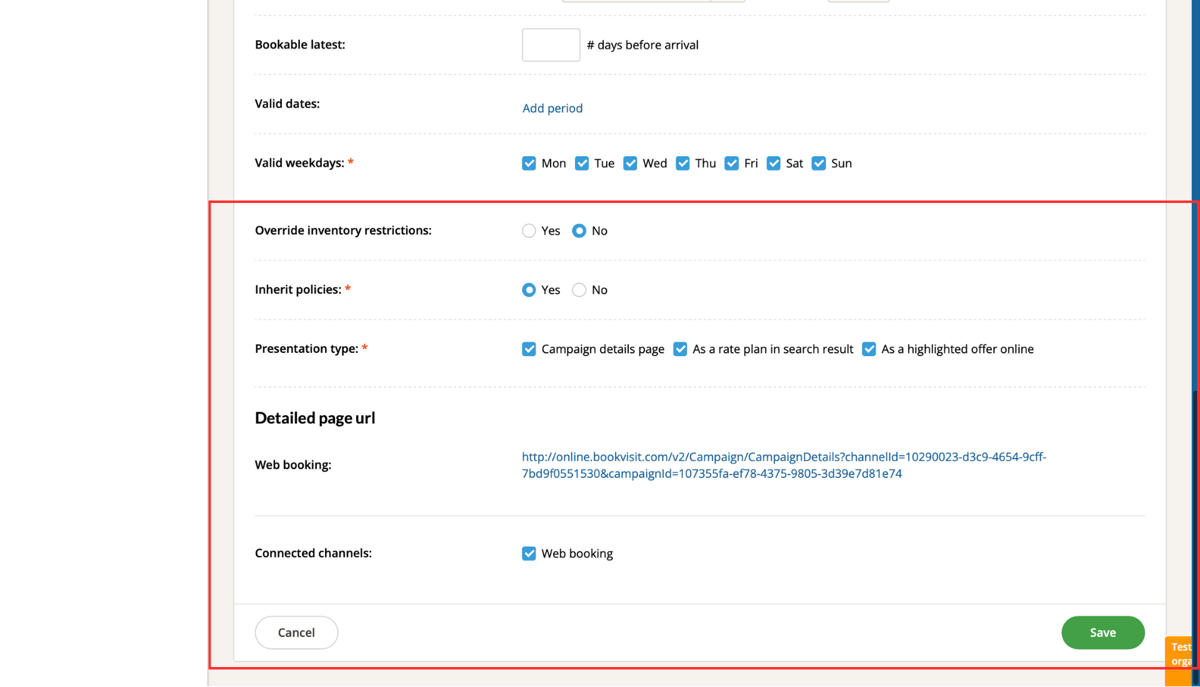
Check the **Leads rate plan in search result** option, then connect the campaign to **Web booking**. This ensures the member price appears in the booking engine for all guests.
---
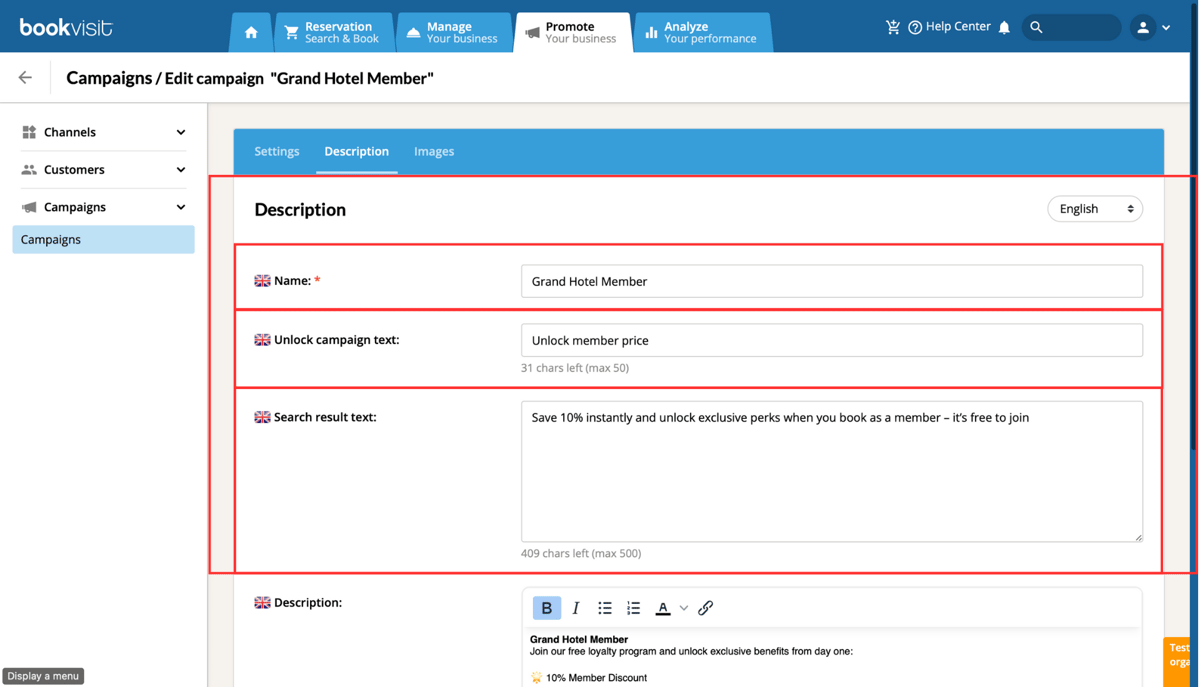
**Step 5 — Enter the campaign name and unlock text**
Enter the campaign name and the unlock text. These texts appear on the booking page when the guest sees the locked member price and clicks to unlock it.
---
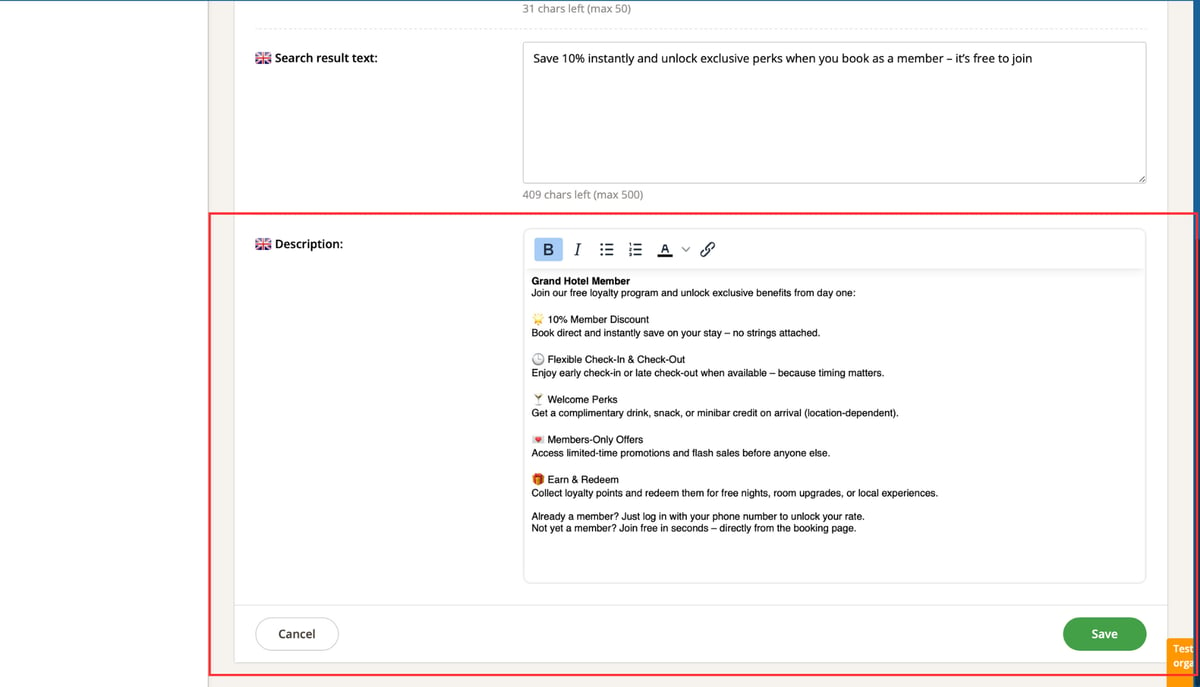
**Step 6 — Add the full campaign description**
Add the full description text. This text is shown in the campaign popup when the guest clicks More information to learn about the loyalty programme benefits.
---
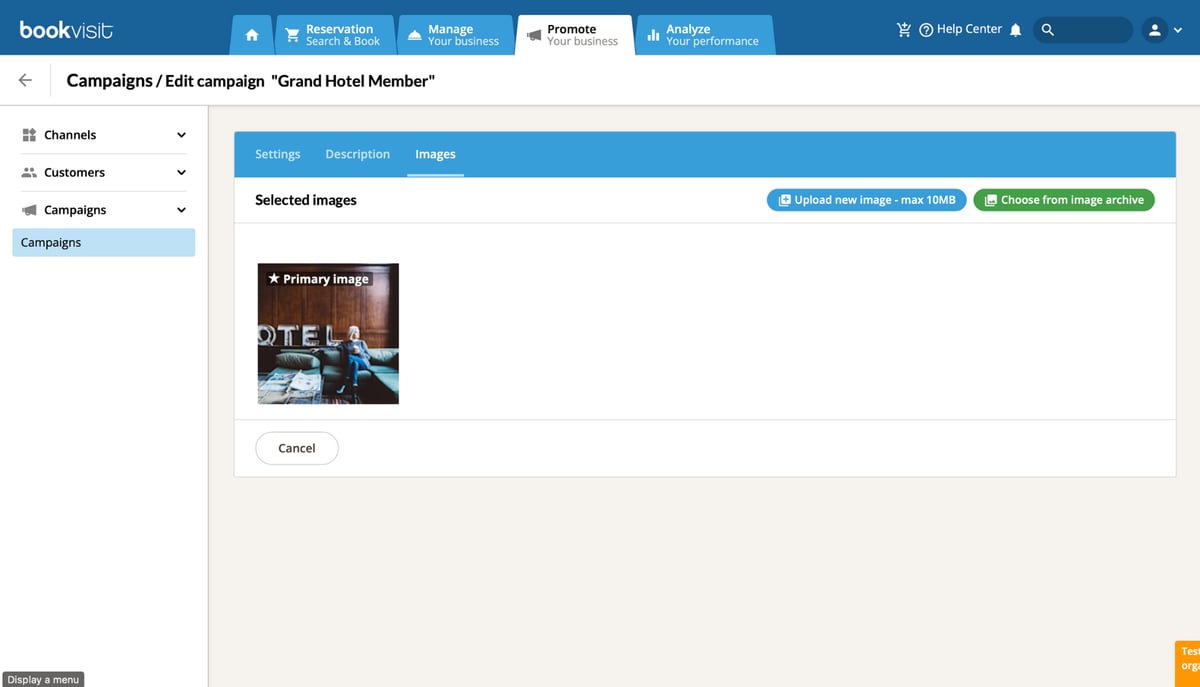
**Step 7 — Upload the campaign image**
**Once all steps are complete, save your campaign settings. The Loyco member pricing campaign is now active in your booking engine.**
Upload the primary image that will be shown on the campaign page and in the popup view. The image should reflect your hotel's brand and loyalty programme identity.
---
**Things to note**
- Make sure the lock type is set to Loyall and not another authentication method, as this is what connects the campaign to Loyco
- The campaign name and unlock text are visible to guests in the booking flow — keep them clear and on-brand
- If you are unsure about any of the settings, contact [support@loyco.no](mailto:support@loyco.no) before going live
[](https://loyco.io)
[mailto:support@Loyco.no](mailto:support@Loyco.no)