
How it works
When a loyalty member makes a purchase in-store, the sales associate searches for the member by phone number or name and links them to the sale. The member's bonus balance is visible directly from the checkout view, and the bonus can be applied as a full or partial discount on the purchase with a single tap. The transaction is then completed as normal with any remaining balance paid by another method.
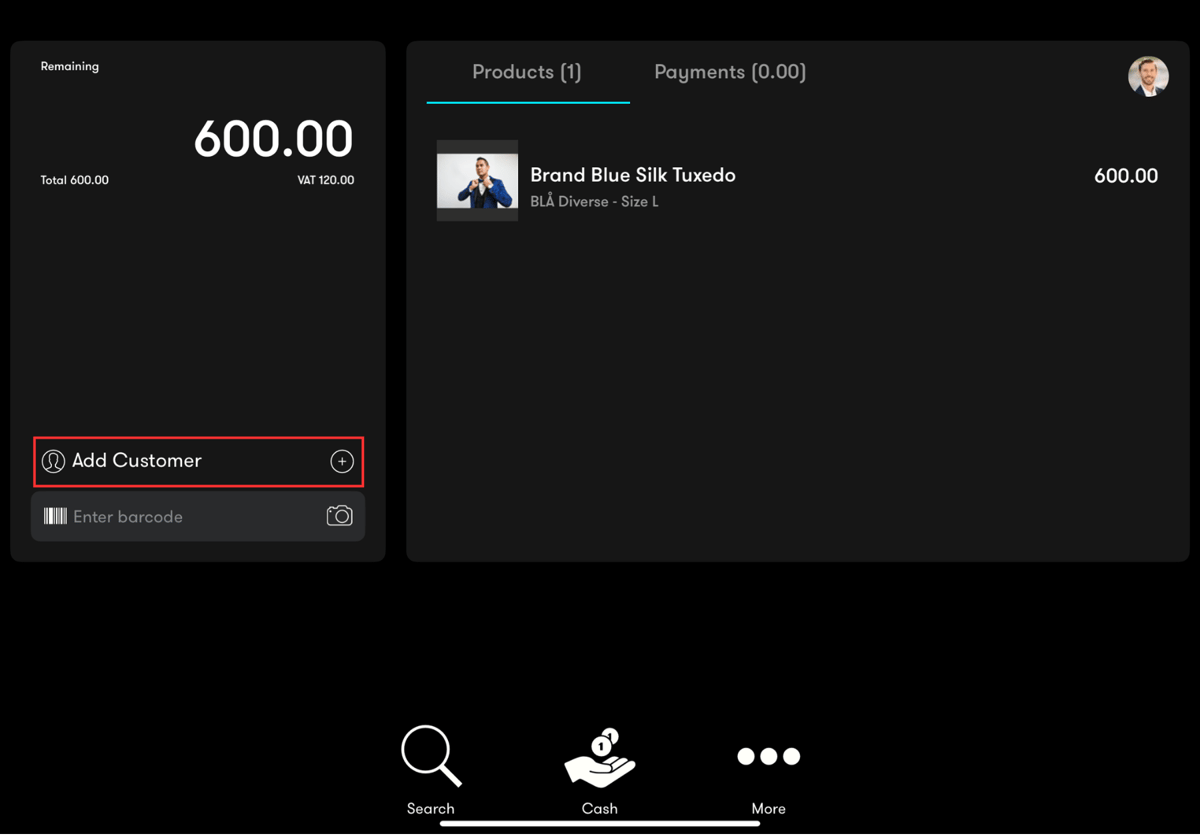
Step 1 — Tap Add Customer
Open the checkout screen in Front Systems POS with the customer's items added to the cart. Tap Add Customer in the bottom-left corner of the checkout screen to open the customer search.
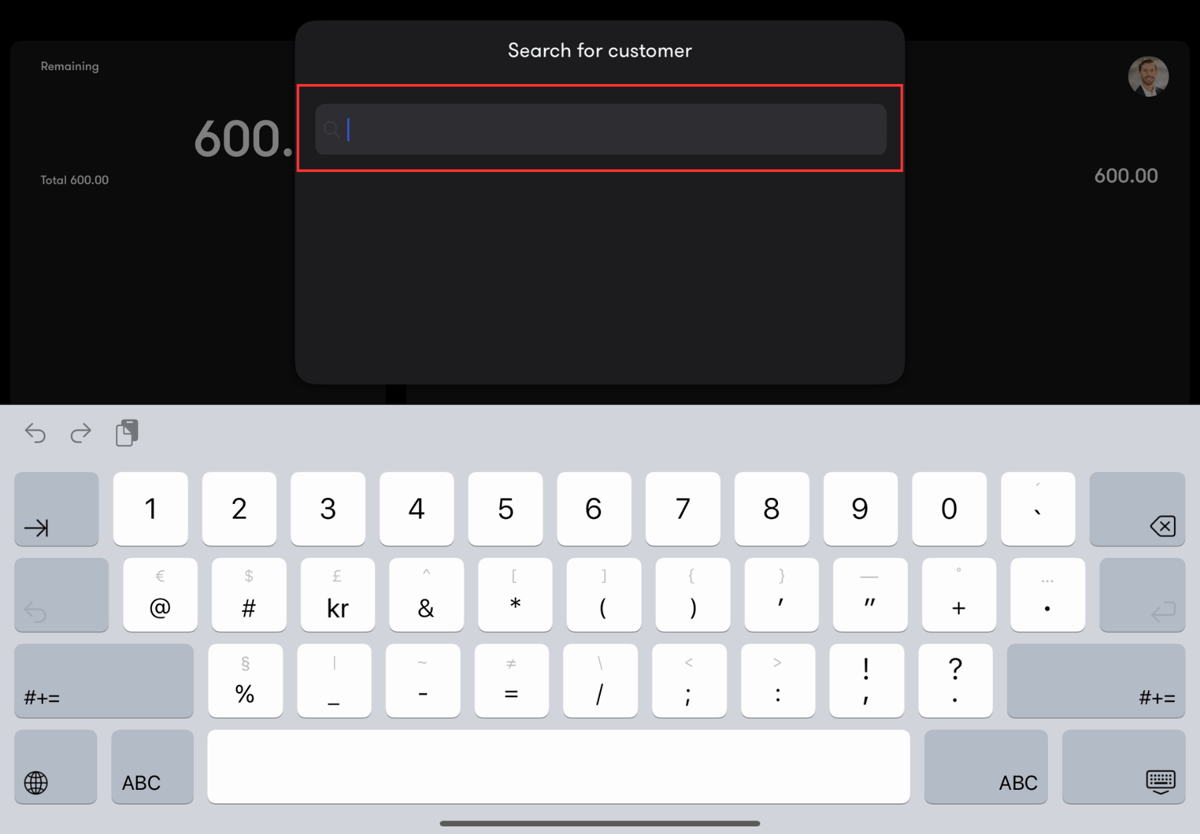
Step 2 — Search by phone number or name
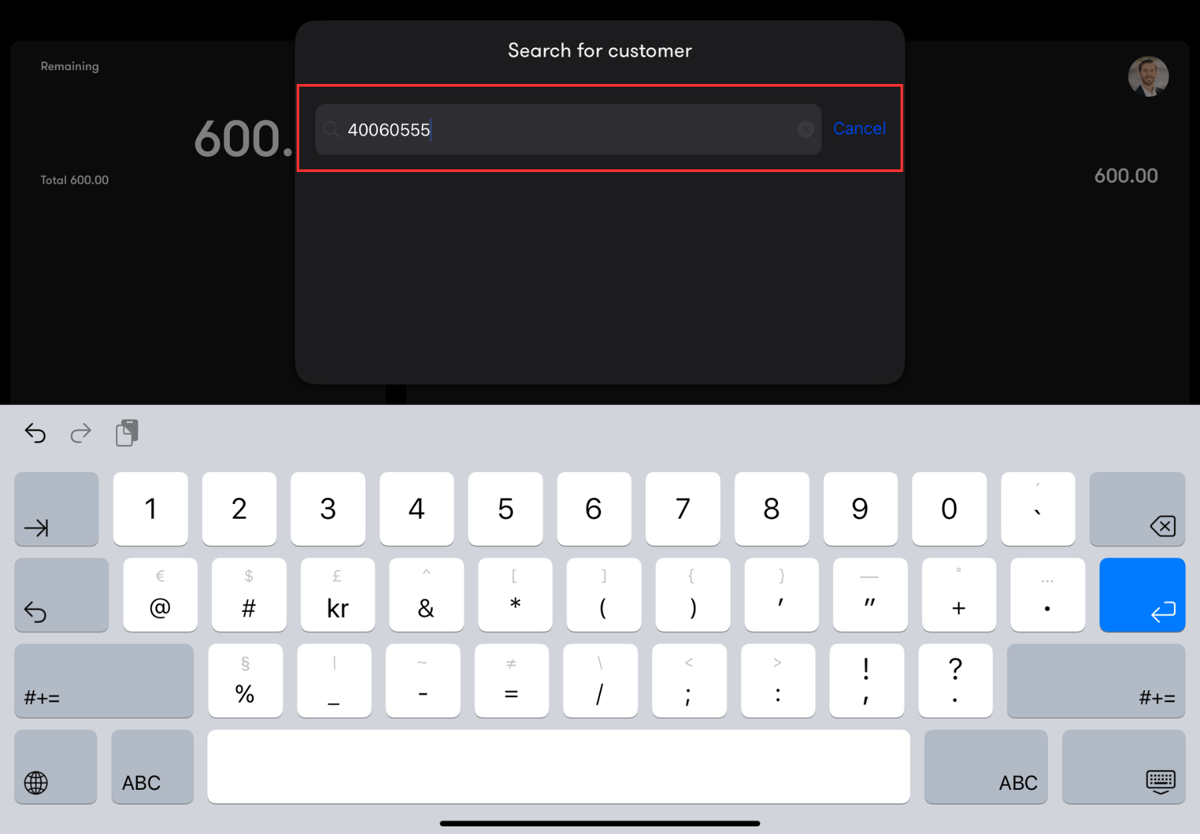
Enter the member's phone number or name in the search field to find their profile in the loyalty programme. Search by phone number where possible — this gives the most accurate result and avoids confusion between customers with similar names.
Step 3 — Select the customer
Once the member is found, their name appears in the search results. Tap the name to link the customer to the current sale.
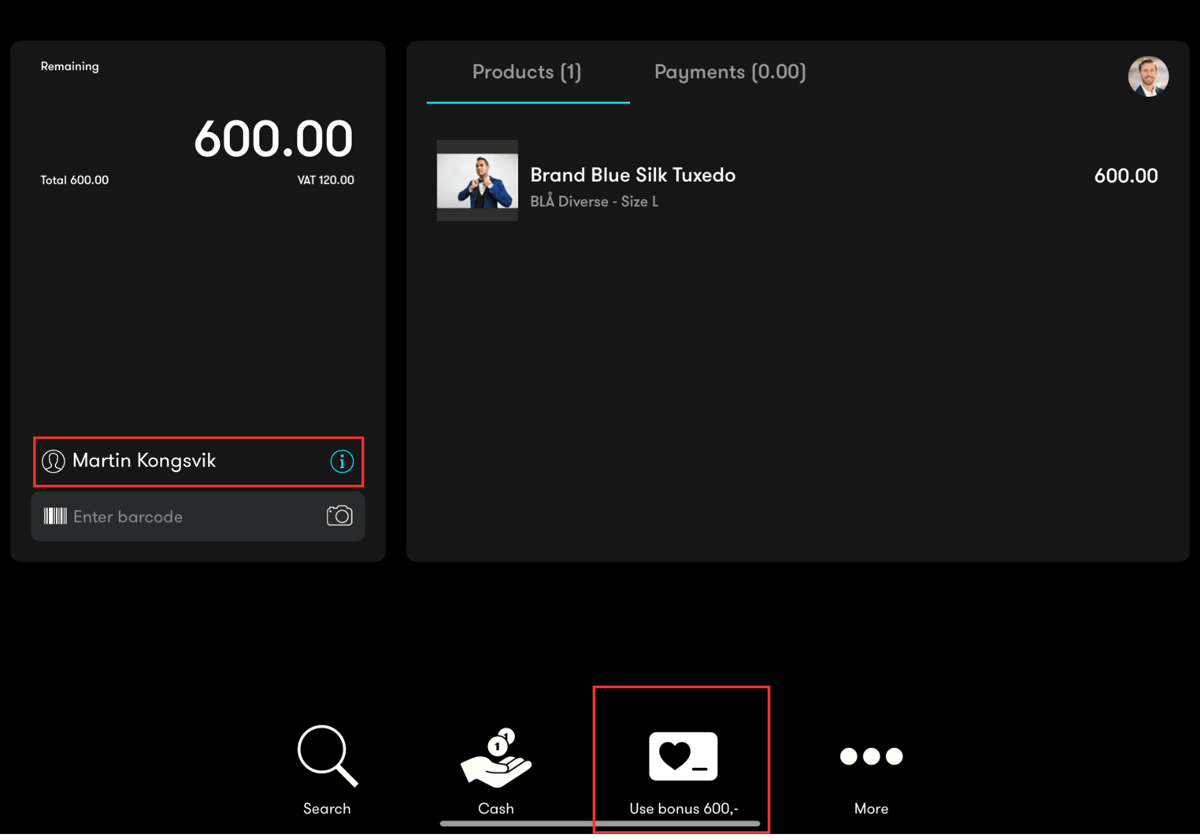
Step 4 — Customer is attached to the transaction
The customer is now linked to the cart and their name is visible in the customer field in the checkout view. This confirms the member is connected to the current transaction and their bonus balance is now accessible.
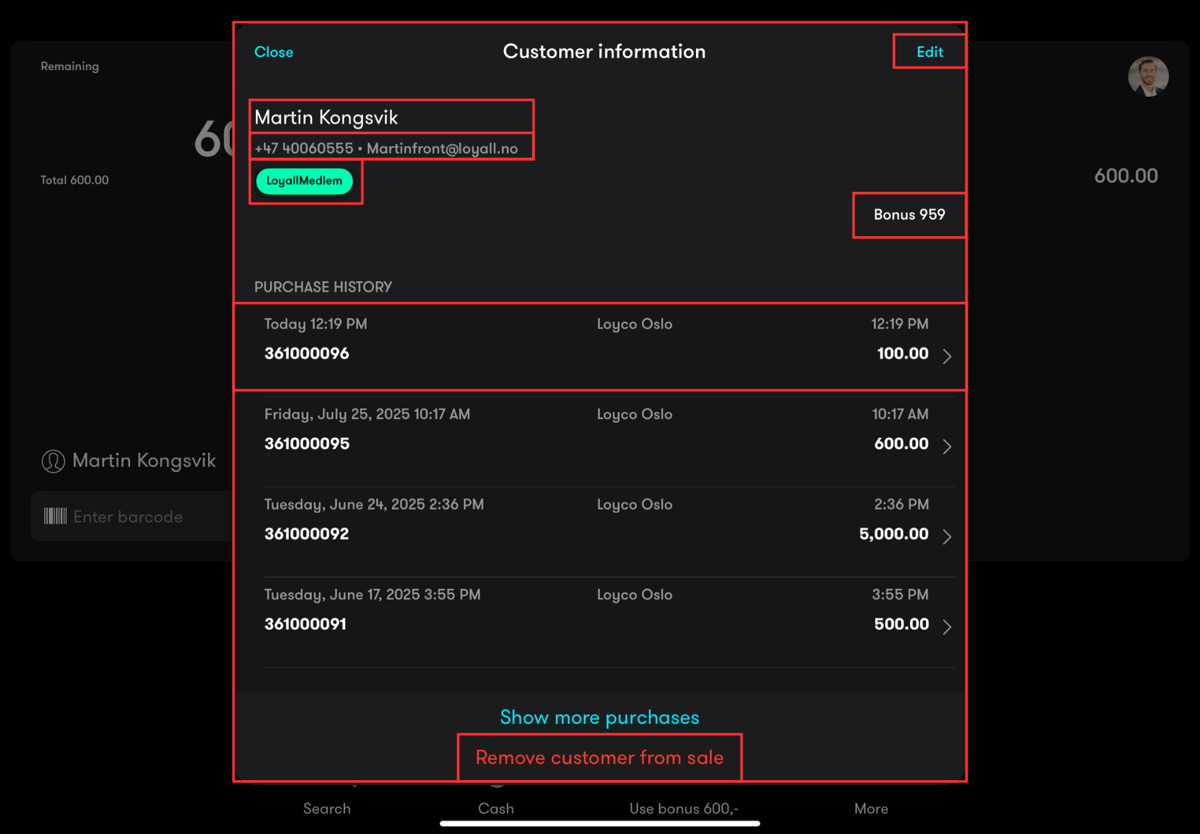
Step 5 — Open member information
Tap the small information icon next to the customer's name in the checkout view. This opens the member's profile, where you can see:
- Current membership status and level
- Available bonus balance
- Purchase history
Review the bonus balance with the customer before proceeding to redemption.
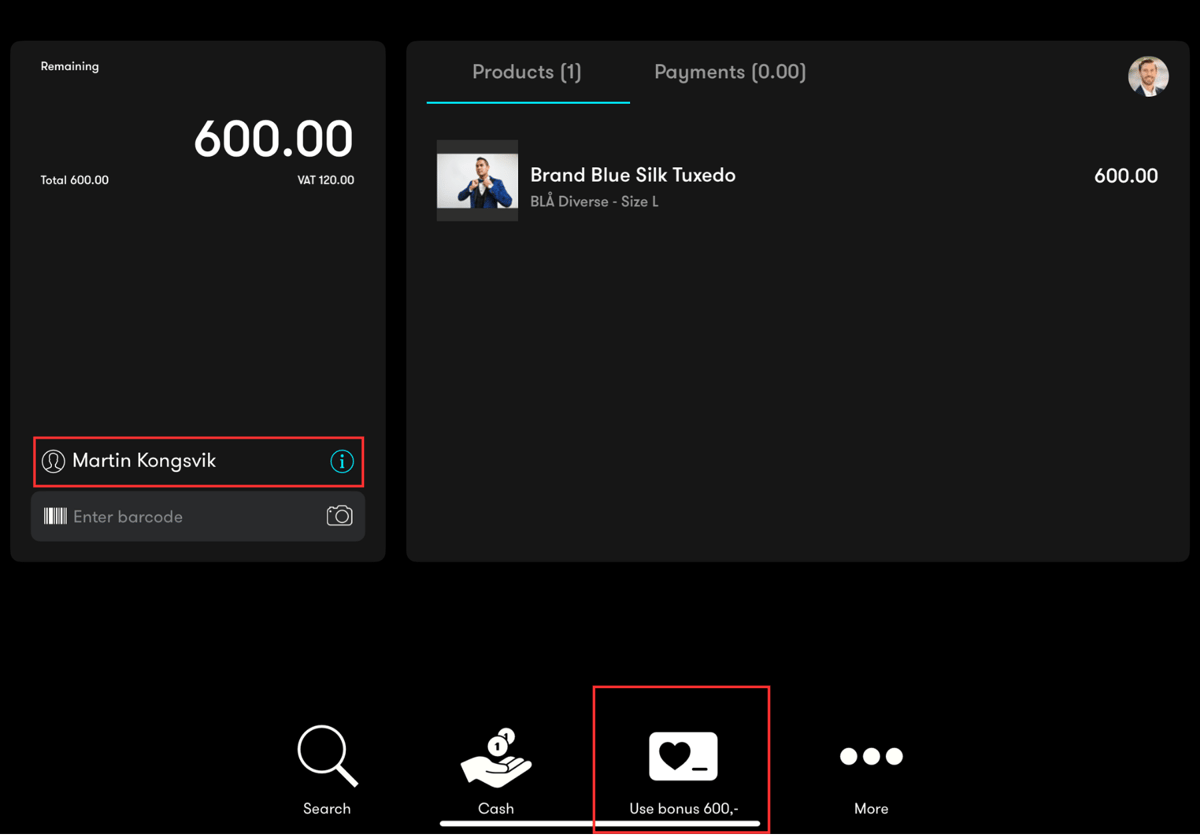
Step 6 — Redeem bonus
Tap Use bonus [amount] at the bottom of the screen to apply the full available bonus as a discount on the current purchase. The bonus is immediately deducted from the cart total and the updated amount is displayed in the checkout view.
If the customer does not want to use their full bonus balance, tap the bonus amount field to enter a custom value before confirming the redemption.
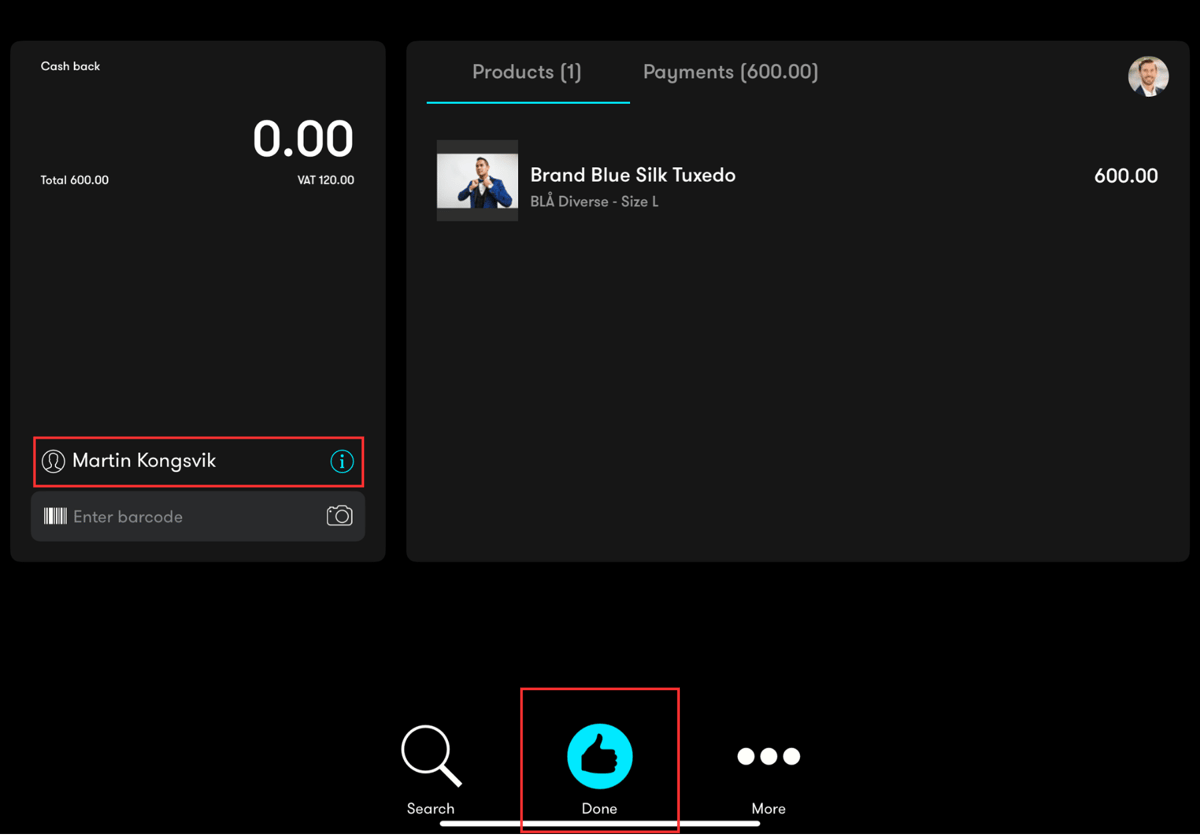
Step 7 — Complete the transaction
After the bonus has been applied, complete the transaction using the customer's preferred payment method for any remaining balance. Tap Done to finalise the sale.
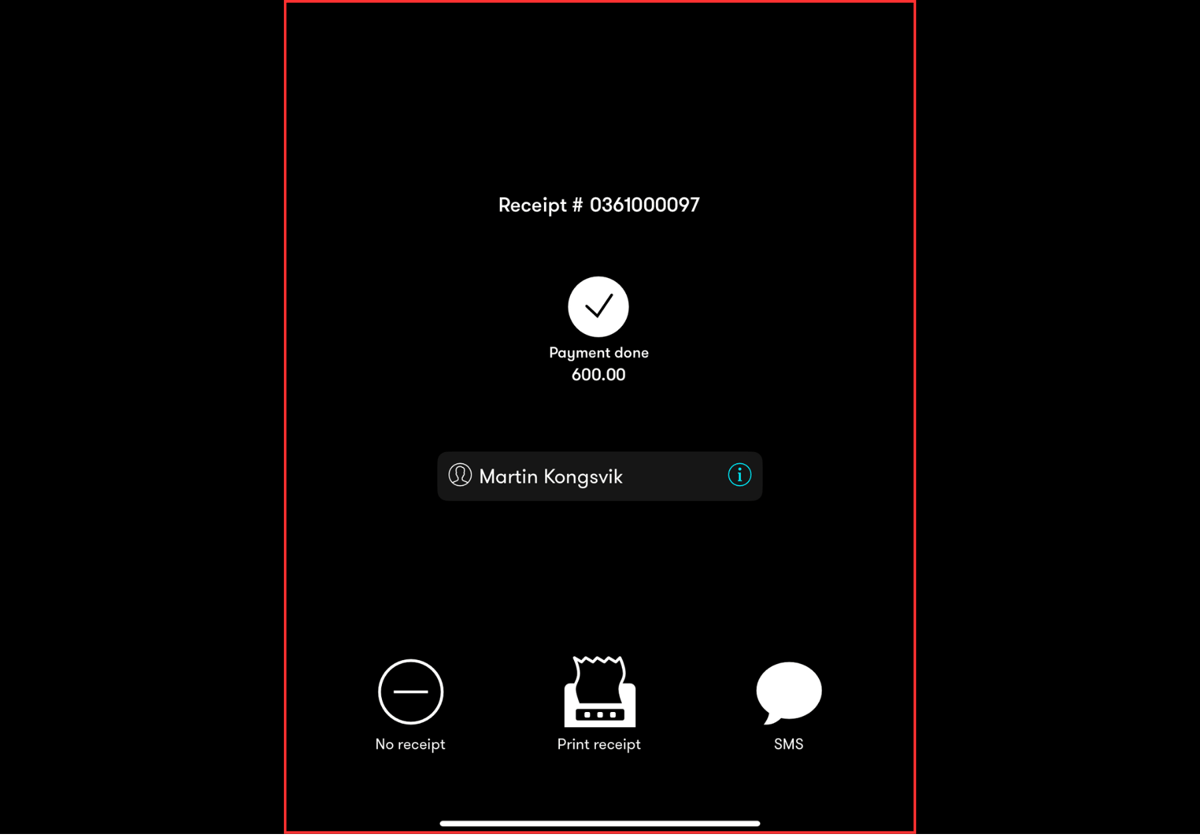
Step 8 — Receipt view
Once the payment is complete, the receipt screen is displayed showing the member's name, the bonus discount applied, and the transaction details. You can send the receipt to the customer via SMS or print it directly from the POS.
Things to note
- Always search for the member by phone number to avoid linking the wrong customer to a sale
- The bonus balance displayed in the member profile is the amount available for redemption — make sure to confirm the amount with the customer before applying it
- Bonus points are earned on the remaining balance after any bonus redemption — the customer continues to accumulate points even when redeeming existing bonus
- If the member's bonus balance is not displaying correctly, verify that the customer profile is correctly linked to their loyalty member profile. Contact support@loyco.no if the issue persists.