---
title: Identify members in Mews
description: Instructions for recognizing and verifying loyalty members in Mews PMS using the star icon and viewing their status.
---
[Skip to content](https://support.loyco.io/knowledgebase/identify-members-in-mews#main-content)
[](https://support.loyco.io/knowledgebase?hsLang=en)
- [Support](https://support.loyco.io/knowledgebase/contact-us)
Show submenu for Support
- [Book a meeting](https://support.loyco.io/knowledgebase/book-meeting)
- [Contact us](https://support.loyco.io/knowledgebase/contact-us)
- [Program settings](https://www.loyco.io/onboarding)
Open main navigation
Close main navigation
- [Support](https://support.loyco.io/knowledgebase/contact-us)
Show submenu for Support
- [Book a meeting](https://support.loyco.io/knowledgebase/book-meeting)
- [Contact us](https://support.loyco.io/knowledgebase/contact-us)
- [Program settings](https://www.loyco.io/onboarding)
- [Admin login](https://auth.loyco.io/Identity/Account/Login)
[Admin login](https://auth.loyco.io/Identity/Account/Login)
\_
- There are no suggestions because the search field is empty.
1. [Loyco](https://support.loyco.io/knowledgebase?hsLang=en)
2. [Mews](https://support.loyco.io/knowledgebase/mews?hsLang=en)
3. [Using Loyco in Mews](https://support.loyco.io/knowledgebase/mews?hsLang=en#using-loyco-in-mews)
# Identify members in Mews
## Confirmed loyalty members are marked with a star icon throughout Mews PMS. Hover over the star to see the "Loyalty member" status.
#### Confirmed members are identified by a star icon throughout Mews PMS. Hover over the star to view "Loyalty Member" status.
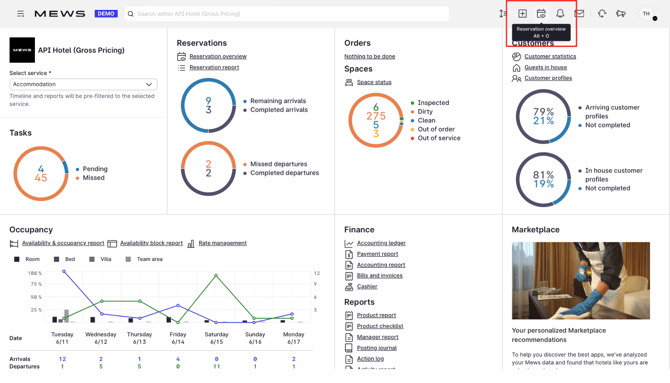
1\. Open "Reservation overview" to view today's arrivals.
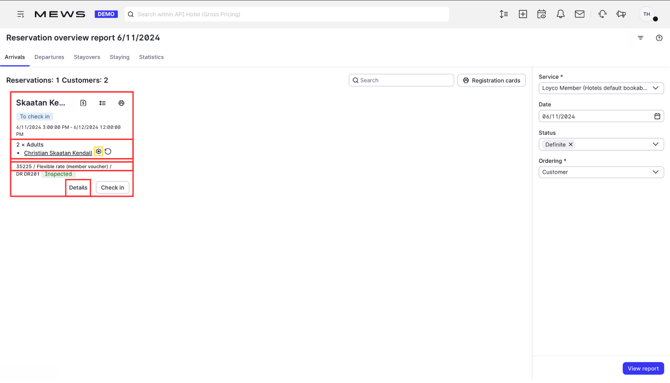
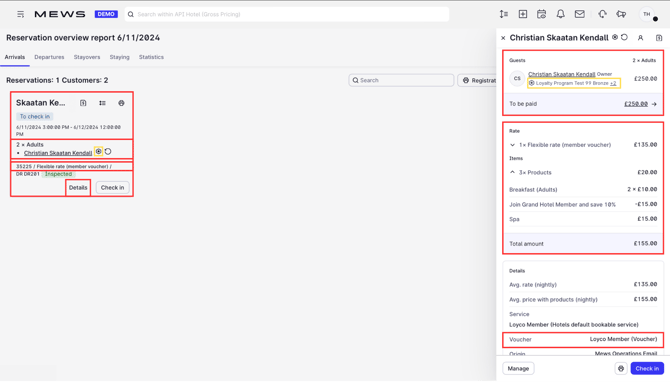
2\. The "Loyalty member" icon appears in the "Reservation overview report", across the "Arrivals", "Departures", "Stayovers" and "Staying" tabs. If your program has tier levels, the member's level is displayed next to the program name (for example "Bronze").
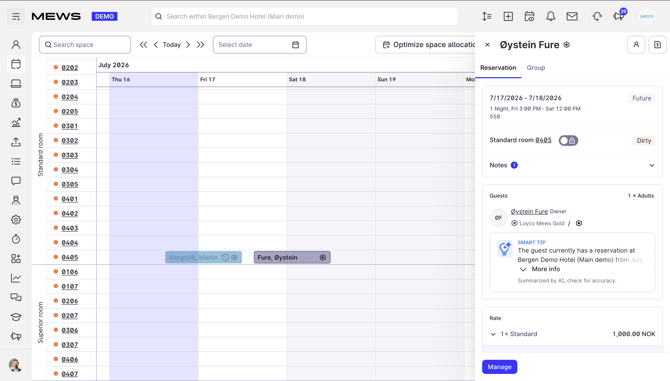
3\. The icon and member level are also visible in the "Timeline" overview.
4\. To show members only, filter by "Loyalty program" under "Customer classification".
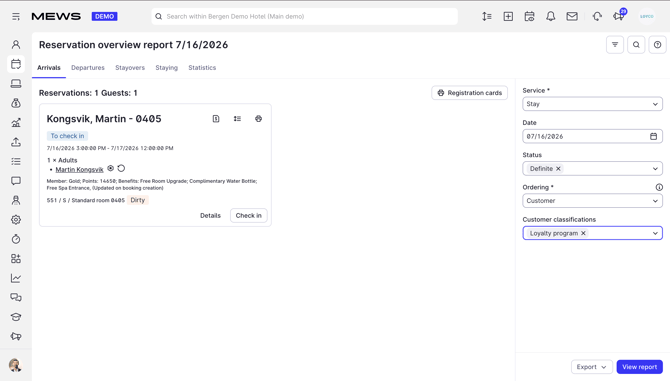
5\. Click "Details" to see more about the guest, including membership status, member level, member rate, and assigned loyalty products.
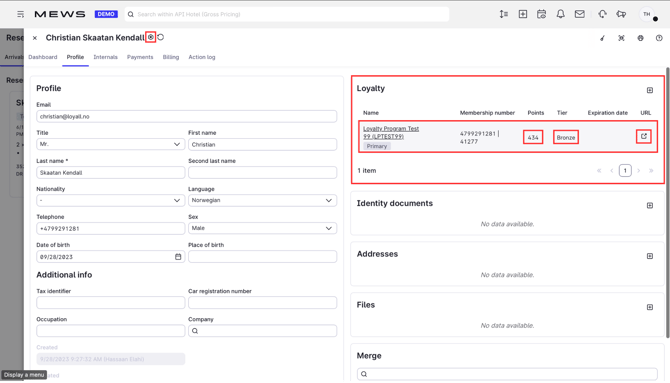
6\. Click the guest's name to open the "Loyalty tab". Here you'll find the member's tier level, bonus points, and membership number (always the guest's phone number). From here, follow the URL to "Member Insight" to view full member details, redeem bonus points, and activate member benefits.
[](https://loyco.io)
[mailto:support@Loyco.no](mailto:support@Loyco.no)