---
title: Identify members in VisBook
description: Learn how to check if a guest is a Loyco member in VisBook — from the customer card, booking page, and what to do if they are not yet a member.
---
[Skip to content](https://support.loyco.io/knowledgebase/identify-members-in-visbook#main-content)
[](https://support.loyco.io/knowledgebase?hsLang=en)
- [Support](https://support.loyco.io/knowledgebase/contact-us)
Show submenu for Support
- [Book a meeting](https://support.loyco.io/knowledgebase/book-meeting)
- [Contact us](https://support.loyco.io/knowledgebase/contact-us)
- [Program settings](https://www.loyco.io/onboarding)
Open main navigation
Close main navigation
- [Support](https://support.loyco.io/knowledgebase/contact-us)
Show submenu for Support
- [Book a meeting](https://support.loyco.io/knowledgebase/book-meeting)
- [Contact us](https://support.loyco.io/knowledgebase/contact-us)
- [Program settings](https://www.loyco.io/onboarding)
- [Admin login](https://auth.loyco.io/Identity/Account/Login)
[Admin login](https://auth.loyco.io/Identity/Account/Login)
\_
- There are no suggestions because the search field is empty.
1. [Loyco](https://support.loyco.io/knowledgebase?hsLang=en)
2. [VisBook](https://support.loyco.io/knowledgebase/visbook?hsLang=en)
3. [Using Loyco in VisBook](https://support.loyco.io/knowledgebase/visbook?hsLang=en#using-loyco-in-visbook)
# Identify members in VisBook
## This article explains how your reception team can check whether a guest is a Loyco member directly in VisBook, both from the customer card and the booking page.
**How it works**
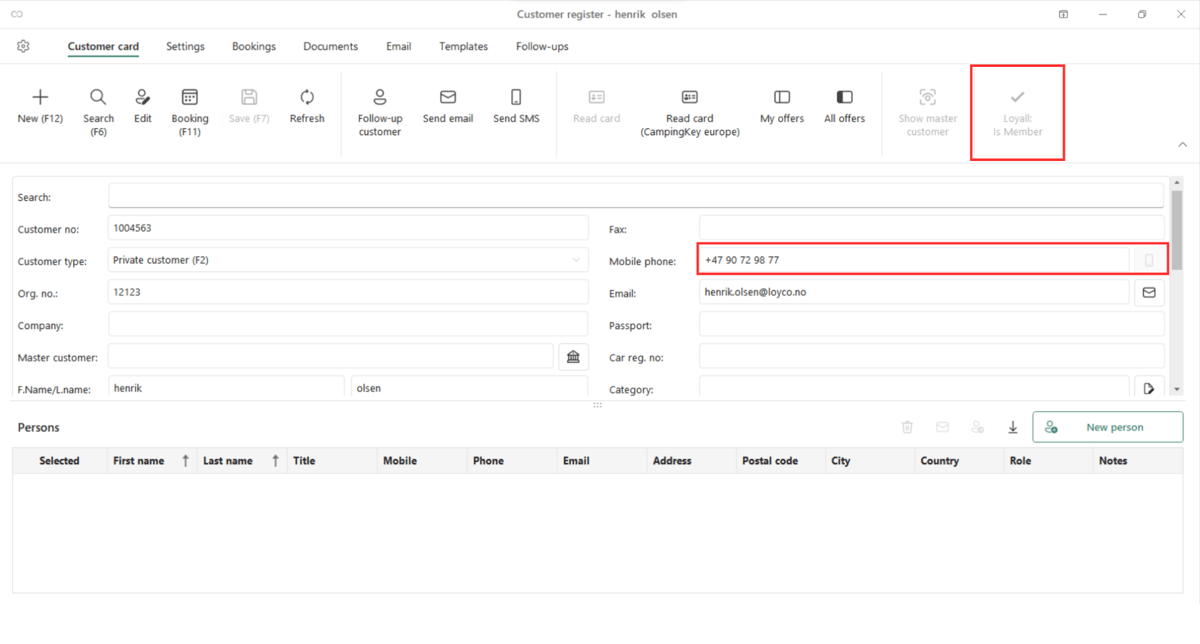
When a guest has a phone number in VisBook that matches a Loyco membership, VisBook automatically displays their member status. No manual lookup is needed — the information appears as soon as the guest profile is opened.
**Checking member status from the customer card**
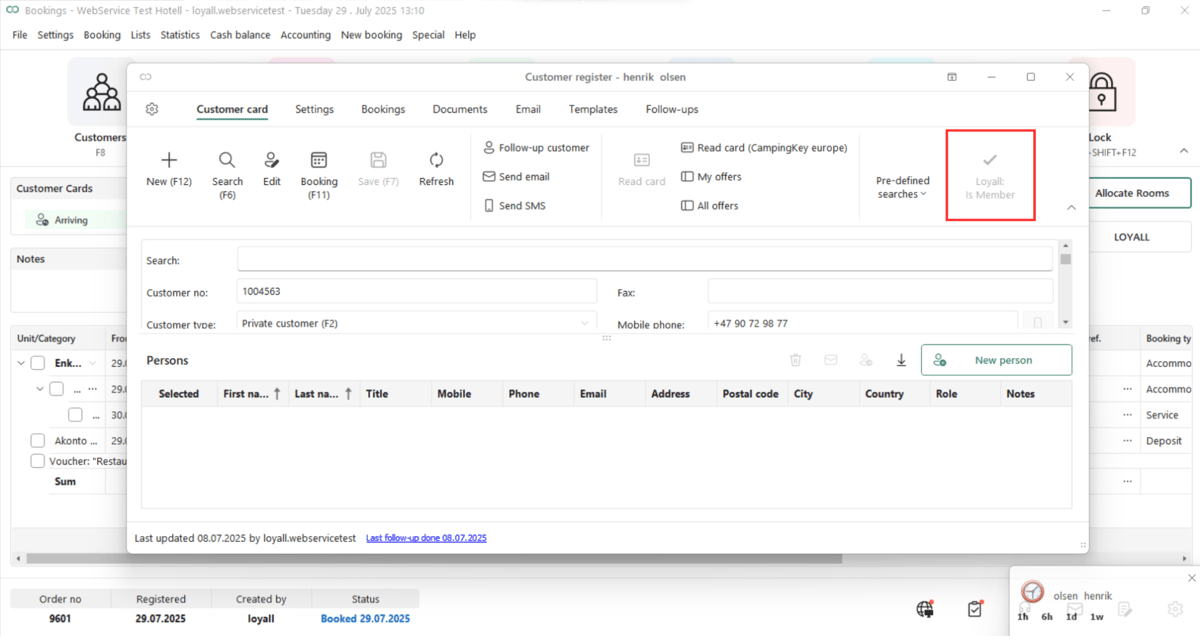
Open the guest's customer card in VisBook. If the phone number matches a Loyco membership, the field "Is member" appears in the customer card, confirming that the guest is an active member.
VisBook shows if a guest is a member or not in the registration and customer card.
**Checking member status from the booking page**
Open the guest's booking in VisBook. If the phone number matches a Loyco membership, two things happen automatically:
- The "Loyall" button becomes clickable
- A member icon appears next to the guest's name
Click the Loyall button to open a popup showing the guest's full member profile, including available offers, gift cards, bonus balance, and membership tier level if configured.
If the Loyall button is greyed out and not clickable, the guest is not a member.
1\. The clickable "Loyall" button in the booking confirms the guest is a member.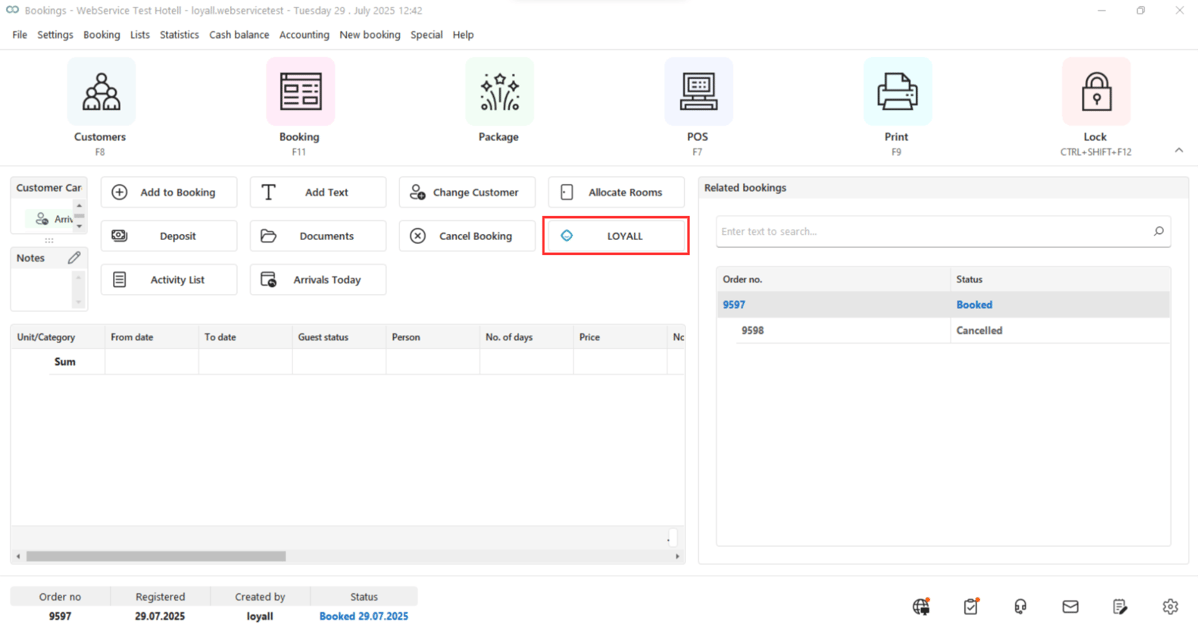 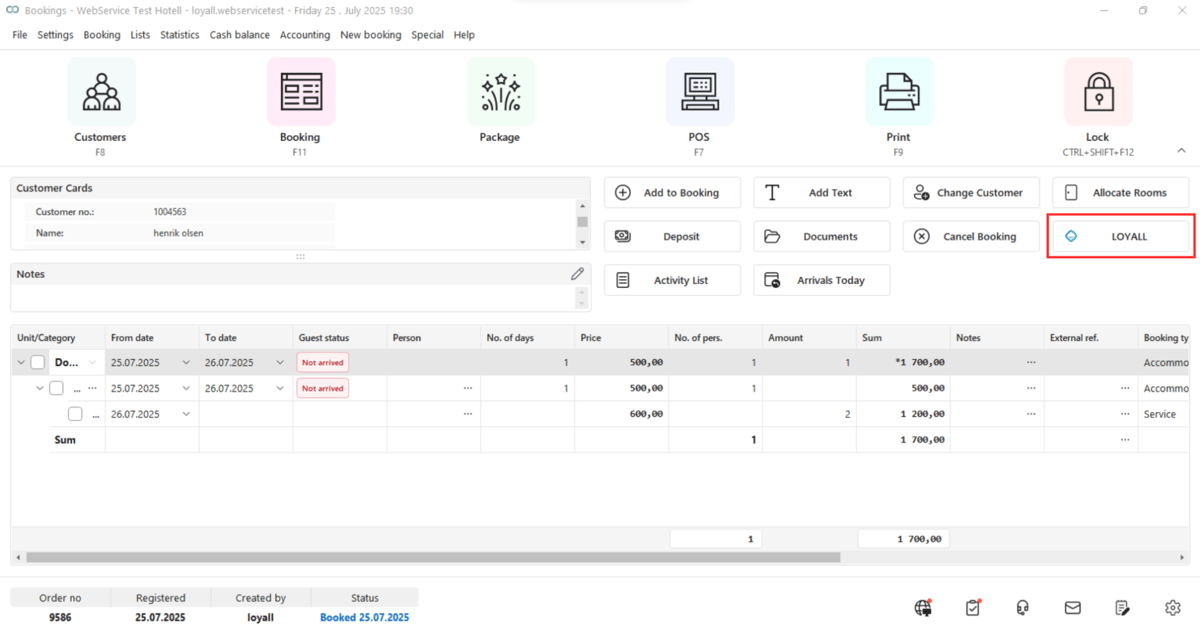
Click the button to view the members's offers, gift cards, bonus balance and tier level (if configured).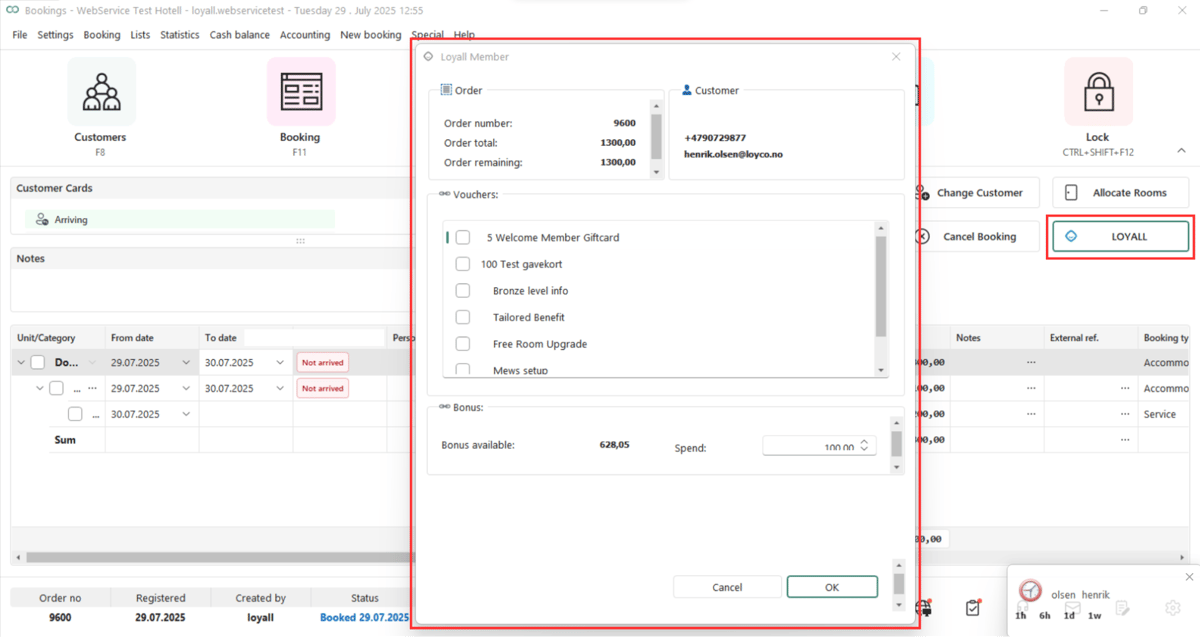
[](https://loyco.io)
[mailto:support@Loyco.no](mailto:support@Loyco.no)