---
title: Redeeming member coupons in Mews
description: Steps for receptionists to access member benefits via the Loyalty tab in Mews and use bonus points as partial payment.
---
[Skip to content](https://support.loyco.io/knowledgebase/redeeming-member-coupons-in-mews#main-content)
[](https://support.loyco.io/knowledgebase?hsLang=en)
- [Support](https://support.loyco.io/knowledgebase/contact-us)
Show submenu for Support
- [Book a meeting](https://support.loyco.io/knowledgebase/book-meeting)
- [Contact us](https://support.loyco.io/knowledgebase/contact-us)
- [Program settings](https://www.loyco.io/onboarding)
Open main navigation
Close main navigation
- [Support](https://support.loyco.io/knowledgebase/contact-us)
Show submenu for Support
- [Book a meeting](https://support.loyco.io/knowledgebase/book-meeting)
- [Contact us](https://support.loyco.io/knowledgebase/contact-us)
- [Program settings](https://www.loyco.io/onboarding)
- [Admin login](https://auth.loyco.io/Identity/Account/Login)
[Admin login](https://auth.loyco.io/Identity/Account/Login)
\_
- There are no suggestions because the search field is empty.
1. [Loyco](https://support.loyco.io/knowledgebase?hsLang=en)
2. [Mews](https://support.loyco.io/knowledgebase/mews?hsLang=en)
3. [Using Loyco in Mews](https://support.loyco.io/knowledgebase/mews?hsLang=en#using-loyco-in-mews)
# Redeeming member coupons in Mews
## Steps for receptionists to redeem member coupon in Member Insight and apply the discount manually in Mews.
**1. Open Member Insight**
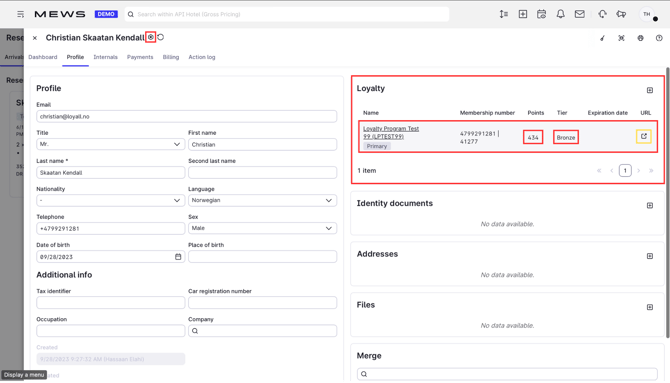
In Mews, open the guest's customer card and go to the **Loyalty** tab. Click the URL shown there.
Member Insight opens in a new window and automatically searches for the member using the number from the customer card. No manual lookup is needed.
**2. Find the coupons**
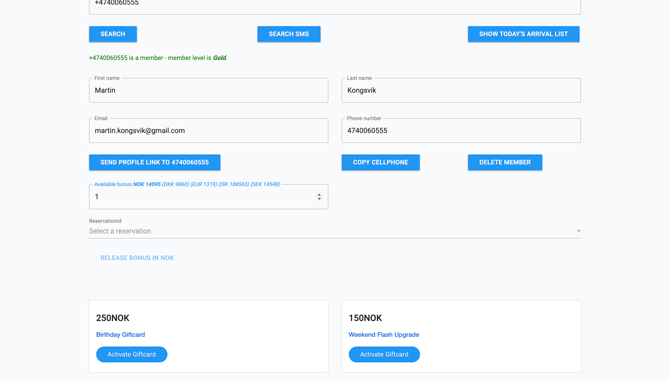
The member's available coupons are shown in Member Insight, each with a fixed value, for example NOK 100.
To redeem, release the coupons amount using the **Release bonus** button. The full coupons value is redeemed in one go.
**3. Confirm the redemption**
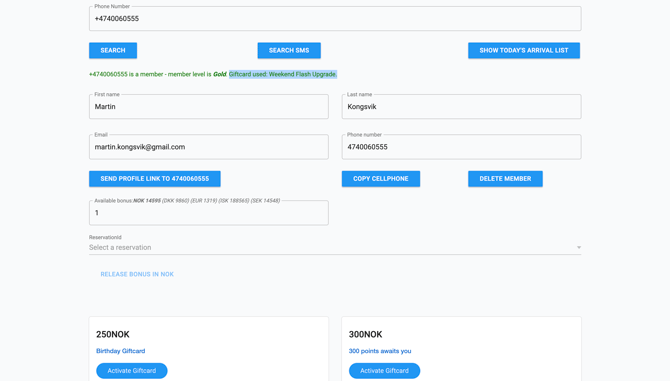
The coupons is removed from the member's profile immediately, and a confirmation message appears at the top of the screen.
**4. Add the discount manually in Mews**
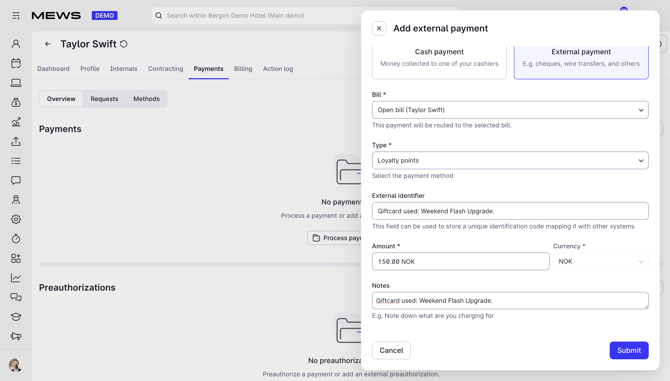
Unlike bonus points, the coupons is not posted to Mews automatically.
In the guest's billing section in Mews, add a **custom discount** matching the coupon value, for example NOK 100. This ensures the discount appears on the guest's receipt.
**Good to know**
- Coupons are redeemed at full value. Partial redemption is not possible.
- The coupon is spent the moment you release it. Only redeem after the guest has confirmed they want to use it.
- Do not forget step 4. The discount must be added manually in Mews, otherwise the guest is charged full price even though the coupon is used.
[](https://loyco.io)
[mailto:support@Loyco.no](mailto:support@Loyco.no)