
Redeeming member vouchers in Mews
Steps for receptionists to redeem member vouchers in Member Insight and apply the discount manually in Mews.
1. Open Member Insight
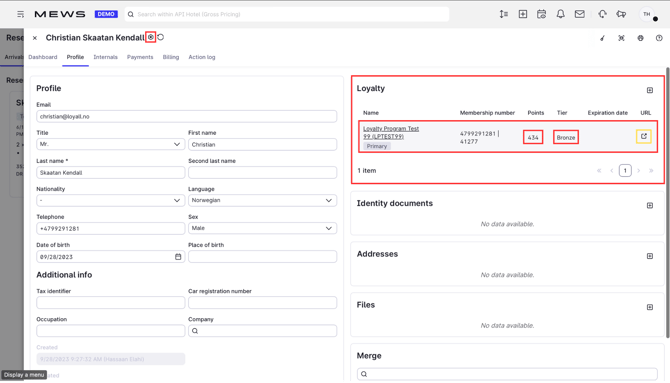
In Mews, open the guest's customer card and go to the Loyalty tab. Click the URL shown there.
Member Insight opens in a new window and automatically searches for the member using the number from the customer card. No manual lookup is needed.
2. Find the voucher
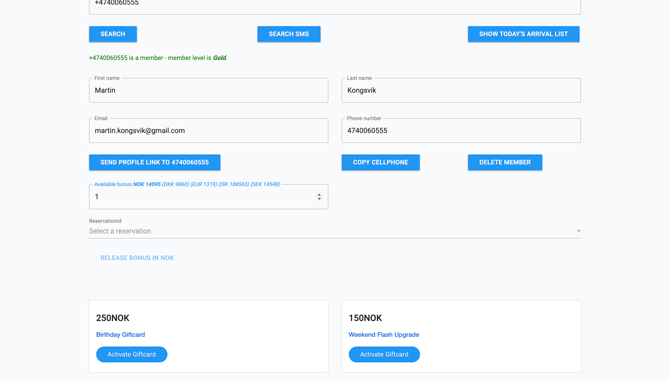
The member's available vouchers are shown in Member Insight, each with a fixed value, for example NOK 100.
To redeem, release the voucher amount using the Release bonus button. The full voucher value is redeemed in one go.
3. Confirm the redemption
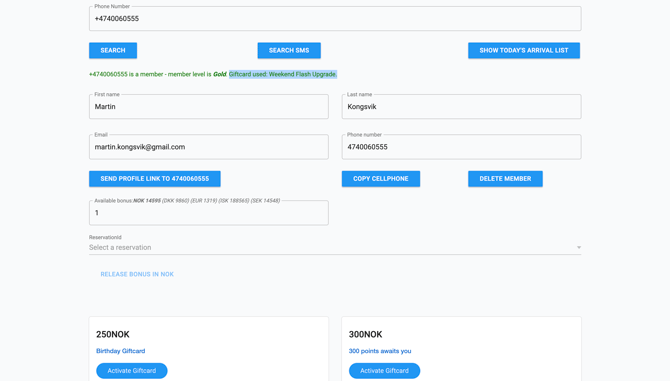
The voucher is removed from the member's profile immediately, and a confirmation message appears at the top of the screen.
4. Add the discount manually in Mews
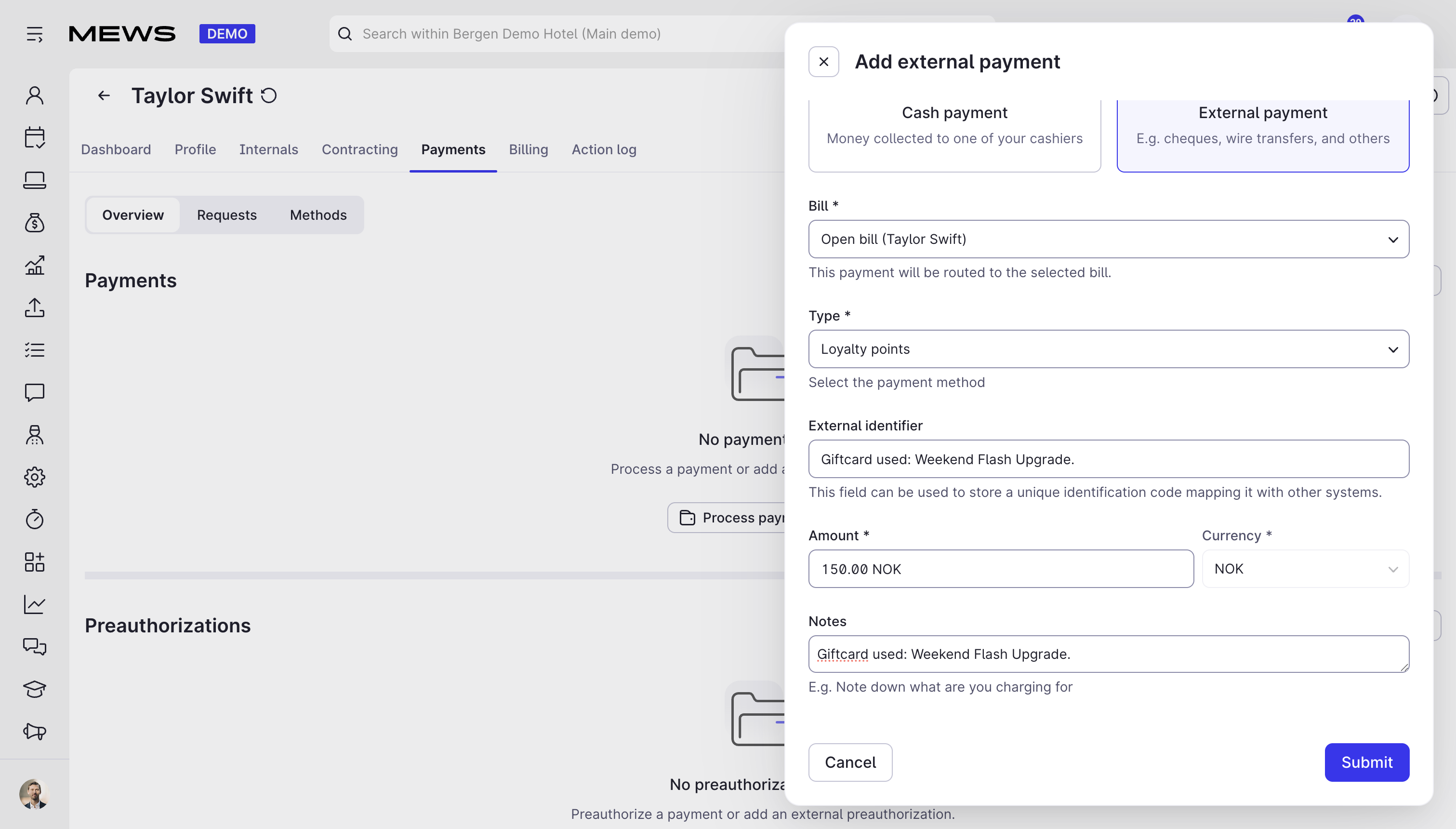
Unlike bonus points, the voucher is not posted to Mews automatically.
In the guest's billing section in Mews, add a custom discount matching the voucher value, for example NOK 100. This ensures the discount appears on the guest's receipt.
Good to know
- Vouchers are redeemed at full value. Partial redemption is not possible.
- The voucher is spent the moment you release it. Only redeem after the guest has confirmed they want to use it.
- Do not forget step 4. The discount must be added manually in Mews, otherwise the guest is charged full price even though the voucher is used.