---
title: Set up products for the Trip planner tab
description: Set up products for the Trip planner tab
---
[Skip to content](https://support.loyco.io/knowledgebase/set-up-products-for-the-trip-planner-tab#main-content)
[](https://support.loyco.io/knowledgebase?hsLang=en)
- [Support](https://support.loyco.io/knowledgebase/contact-us)
Show submenu for Support
- [Book a meeting](https://support.loyco.io/knowledgebase/book-meeting)
- [Contact us](https://support.loyco.io/knowledgebase/contact-us)
- [Program settings](https://www.loyco.io/onboarding)
Open main navigation
Close main navigation
- [Support](https://support.loyco.io/knowledgebase/contact-us)
Show submenu for Support
- [Book a meeting](https://support.loyco.io/knowledgebase/book-meeting)
- [Contact us](https://support.loyco.io/knowledgebase/contact-us)
- [Program settings](https://www.loyco.io/onboarding)
- [Admin login](https://auth.loyco.io/Identity/Account/Login)
[Admin login](https://auth.loyco.io/Identity/Account/Login)
\_
- There are no suggestions because the search field is empty.
1. [Loyco](https://support.loyco.io/knowledgebase?hsLang=en)
2. [Mews](https://support.loyco.io/knowledgebase/mews?hsLang=en)
3. [Setup & configuration](https://support.loyco.io/knowledgebase/mews?hsLang=en#setup-configuration)
# Set up products for the Trip planner tab
## Steps for administrators to make products bookable in the member portal
The Trip planner tab shows products a member can buy for an upcoming stay, for example breakfast, late check-out or an experience. The portal automatically pulls the products attached to the **Stay** service, so there's no separate list to send us. You just need the products set up correctly in Mews.
**1. Open Services**
In Mews, go to the main menu › **Settings** › **Services**.
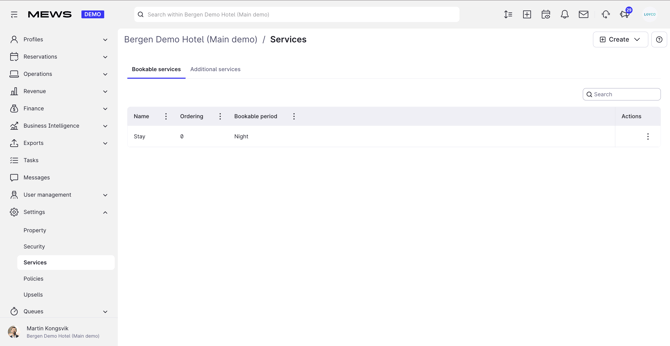
**2. Select the bookable service**
Choose the bookable service named **Stay**. Products must sit on this service to appear in the portal.
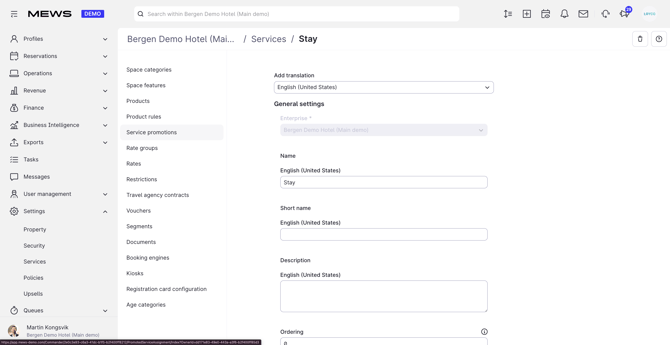
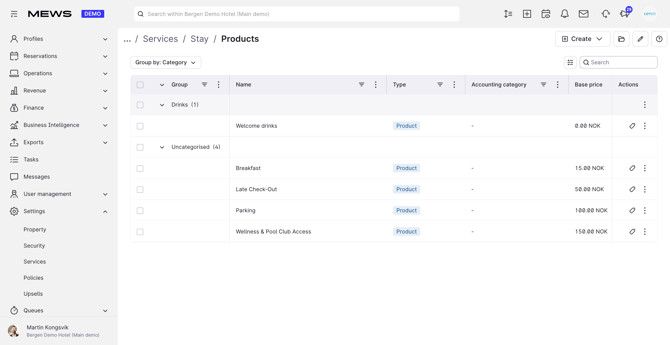
**3. Create the product**
Click **Products**, then **Create**. Give the product a name and set its price, currency and tax. The price must be greater than zero. Any description and conditions you add here are shown on the product card in the portal.
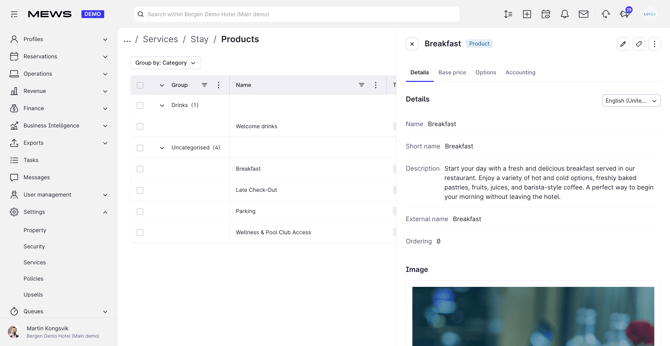
**4. Upload a product image**
Add a product image. It's shown on the product card in the portal, so products without an image won't display properly.
**5. Set the product to active**
Set the product to active. Only active products appear in the Trip planner tab. Products aren't hidden by default, so anything active on **Stay** with a price and image will show unless you explicitly exclude it. To hide a product from guests, mark it for exclusion from the offer in Mews. Use this for extras that aren't guest-relevant, for example OTA contributions.
**Good to know**
- For a product to appear in the portal it must be attached to **Stay**, be active, have a price greater than zero, and have an image.
- Products aren't hidden by default. Anything active on **Stay** with a price and image will show in the Trip planner unless you explicitly exclude it. To hide a product from guests, mark it for exclusion from the offer in Mews. Use this for extras that aren't guest-relevant, for example OTA contributions.
- Products with a **CityTax** or **Fee** qualification in Mews are rolled into the single total shown to the guest, instead of appearing as separate buyable extras. Use this for city tax and mandatory facility fees so the guest sees one clean price.
- Descriptions and conditions set on a product display on the product card, including per-person notes. Guests can't select a quantity yet (for example 2x), so state per-person conditions clearly in the description.
- A product set to **charge once** is automatically limited to one purchase per booking in the portal.
- For guests to receive a confirmation email after a Trip planner booking, enable **Send confirmation email to channel reservations** under **Services** › **Stay** › **Visit options** in Mews.
- Let us know when the products are ready, and we'll switch the Trip planner tab on.
- Setting up the Booking tab too? See [Set up the member rate for the Booking tab](https://support.loyco.io/knowledgebase/member-rate-booking-tab?hsLang=en).
- Still stuck? [Contact us](https://support.loyco.io/knowledgebase/contact-us?hsLang=en) and we'll help you get set up.
[](https://loyco.io)
[mailto:support@Loyco.no](mailto:support@Loyco.no)