---
title: Set up the member rate for the Booking tab
description: Set up the member rate for the Booking tab
---
[Skip to content](https://support.loyco.io/knowledgebase/set-up-the-member-rate-for-the-booking-tab#main-content)
[](https://support.loyco.io/knowledgebase?hsLang=en)
- [Support](https://support.loyco.io/knowledgebase/contact-us)
Show submenu for Support
- [Book a meeting](https://support.loyco.io/knowledgebase/book-meeting)
- [Contact us](https://support.loyco.io/knowledgebase/contact-us)
- [Program settings](https://www.loyco.io/onboarding)
Open main navigation
Close main navigation
- [Support](https://support.loyco.io/knowledgebase/contact-us)
Show submenu for Support
- [Book a meeting](https://support.loyco.io/knowledgebase/book-meeting)
- [Contact us](https://support.loyco.io/knowledgebase/contact-us)
- [Program settings](https://www.loyco.io/onboarding)
- [Admin login](https://auth.loyco.io/Identity/Account/Login)
[Admin login](https://auth.loyco.io/Identity/Account/Login)
\_
- There are no suggestions because the search field is empty.
1. [Loyco](https://support.loyco.io/knowledgebase?hsLang=en)
2. [Mews](https://support.loyco.io/knowledgebase/mews?hsLang=en)
3. [Setup & configuration](https://support.loyco.io/knowledgebase/mews?hsLang=en#setup-configuration)
# Set up the member rate for the Booking tab
## Steps for administrators to create a bookable member rate in Mews
The Booking tab in the member portal pulls rooms and rates directly from Mews. For it to work, you need one rate with the exact same name across all hotels. The portal matches on the rate name, so spelling and casing must be identical everywhere.
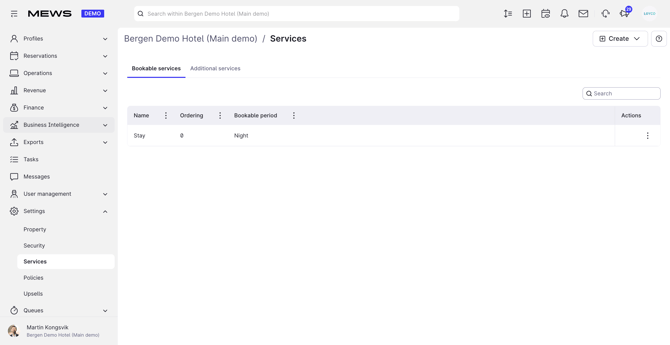
**1. Open Services**
In Mews, go to the main menu › **Settings** › **Services**.
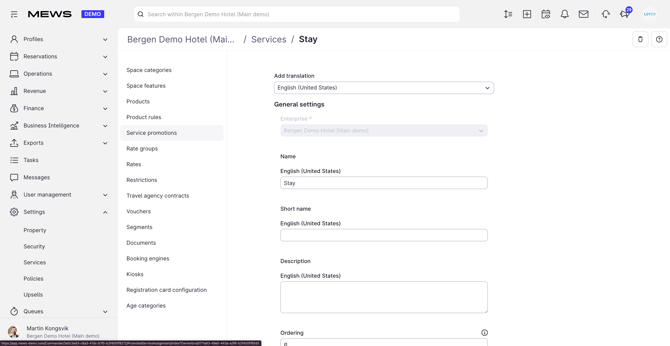
**2. Select the bookable service**
Choose the bookable accommodation service. This service must be named **Stay**, otherwise the portal can't find it.
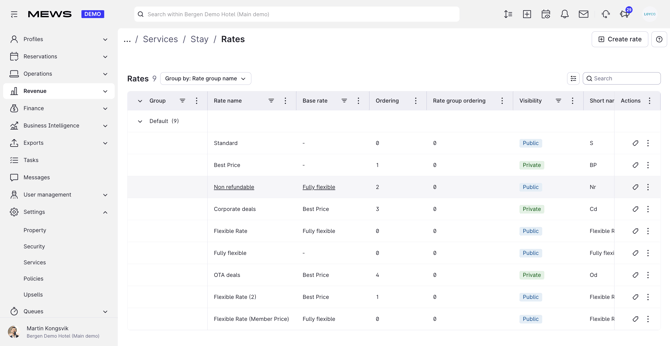
**3. Open Rates**
Click **Rates**. Here you'll see the existing rate names and whether each one is public or private.
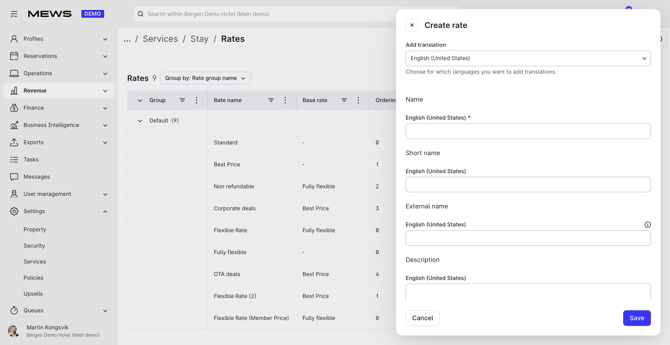
**4. Create or identify the member rate**
If the rate already exists, confirm the name matches exactly on every hotel. If it's missing, click **Create** and set it up with the same name on each hotel, for example **Member Rate**. Make sure it's active, published, and applies to all room categories that should be bookable in the portal.
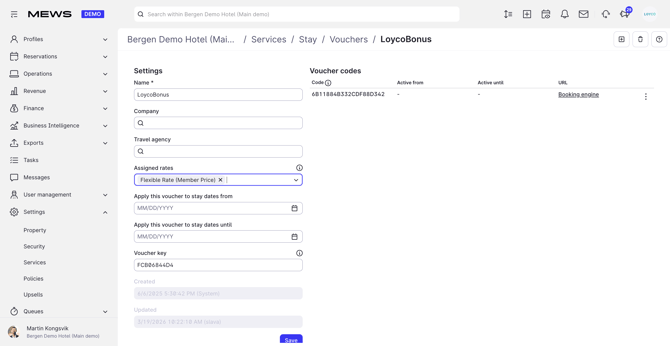
**5. For a private rate: link a voucher**
A private rate can't be booked until it's unlocked. Create a **voucher** that unlocks the rate and send us the code, or confirm that we may create it on the rate.
**Good to know**
- The rate name must be identical on every hotel, same spelling and same upper- and lower-case. The portal matches on the name.
- A public rate is recommended. It's bookable straight away with no extra steps.
- The bookable service must be named **Stay** on every hotel.
- When the rate is ready, send us the exact rate name so we can switch the Booking tab on.
- Setting up a private rate? See [Creating vouchers in Mews](https://support.loyco.io/knowledgebase/creating-vouchers-in-mews?hsLang=en).
- Still stuck? [Contact us](https://support.loyco.io/knowledgebase/contact-us?hsLang=en) and we'll help you get set up.
[](https://loyco.io)
[mailto:support@Loyco.no](mailto:support@Loyco.no)